
Operations | Product Map - Default Layout
To view additional videos, click here, or subscribe to our Youtube Channel
This guide explains how to load a default layout for a product map, which helps you save time and be more productive, by using Nayax Core.
Go to my.www.nayax.com
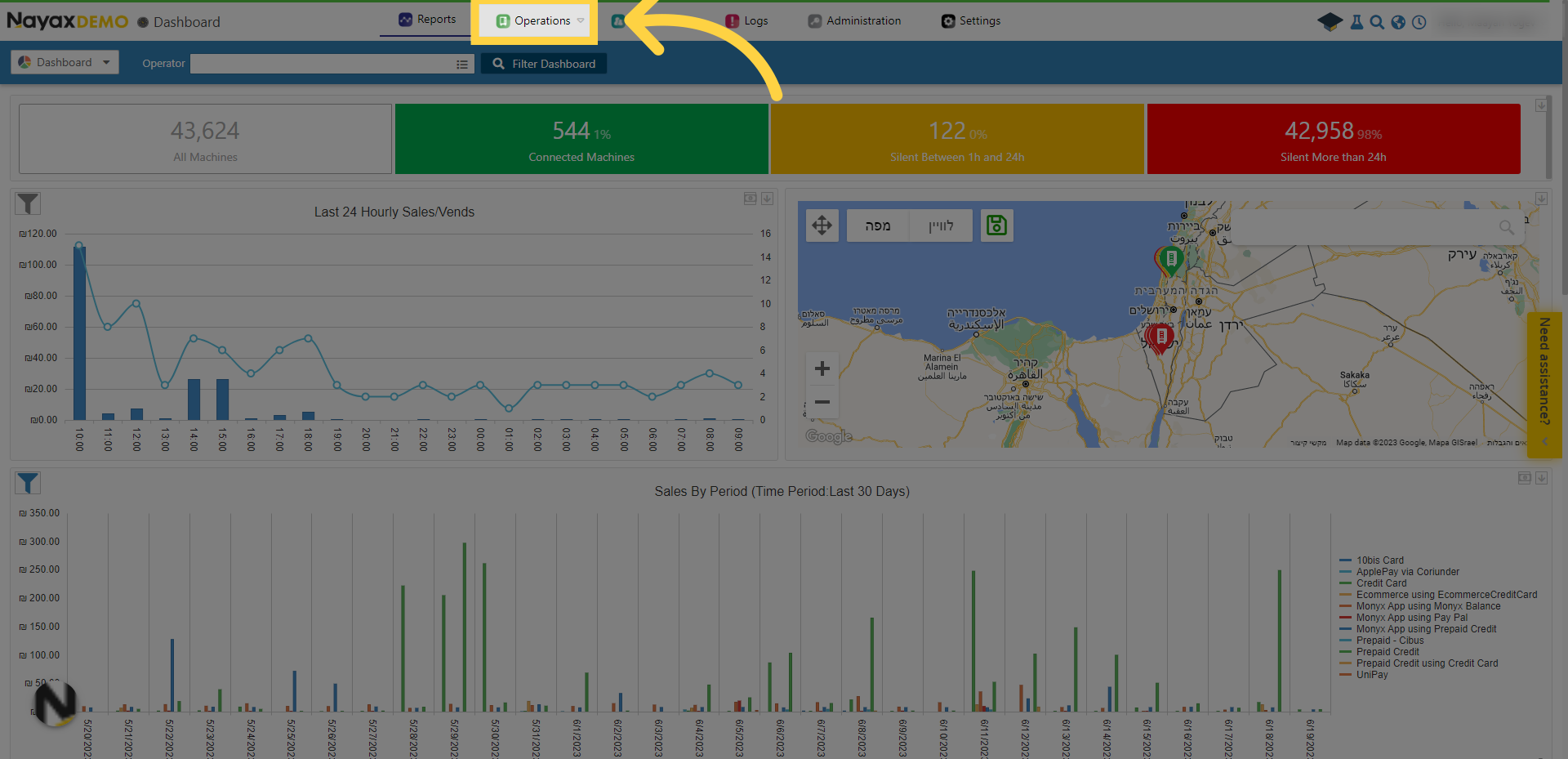
1. Click "Operations"
Click on the "Operations" section.
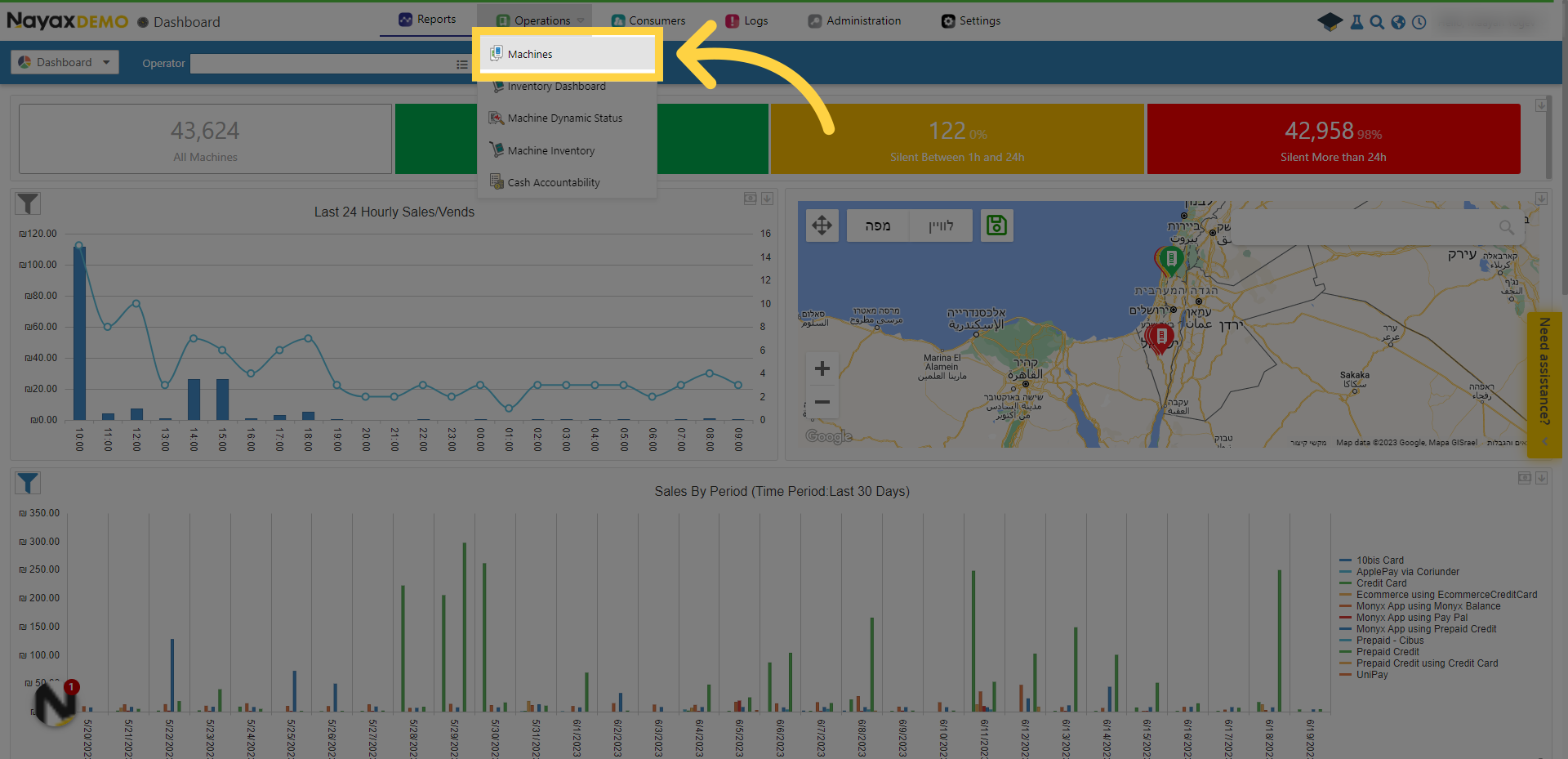
2. Click "Machines"
Select "Machines" from the drop-down menu.
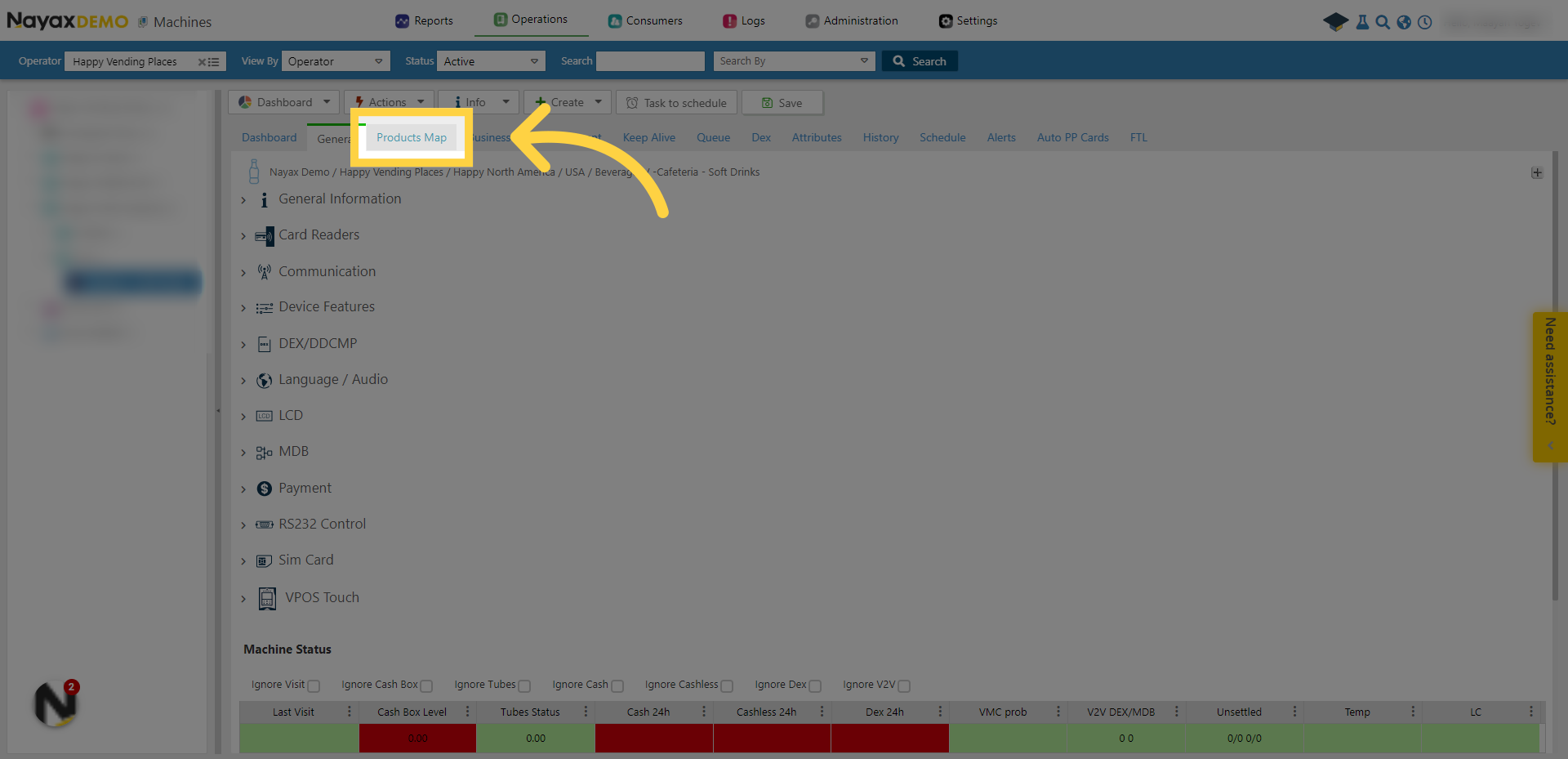
3. Click "Products Map"
Locate the desired machine and then click on "Products Map".
4. Click "Map"
Click on "Map".
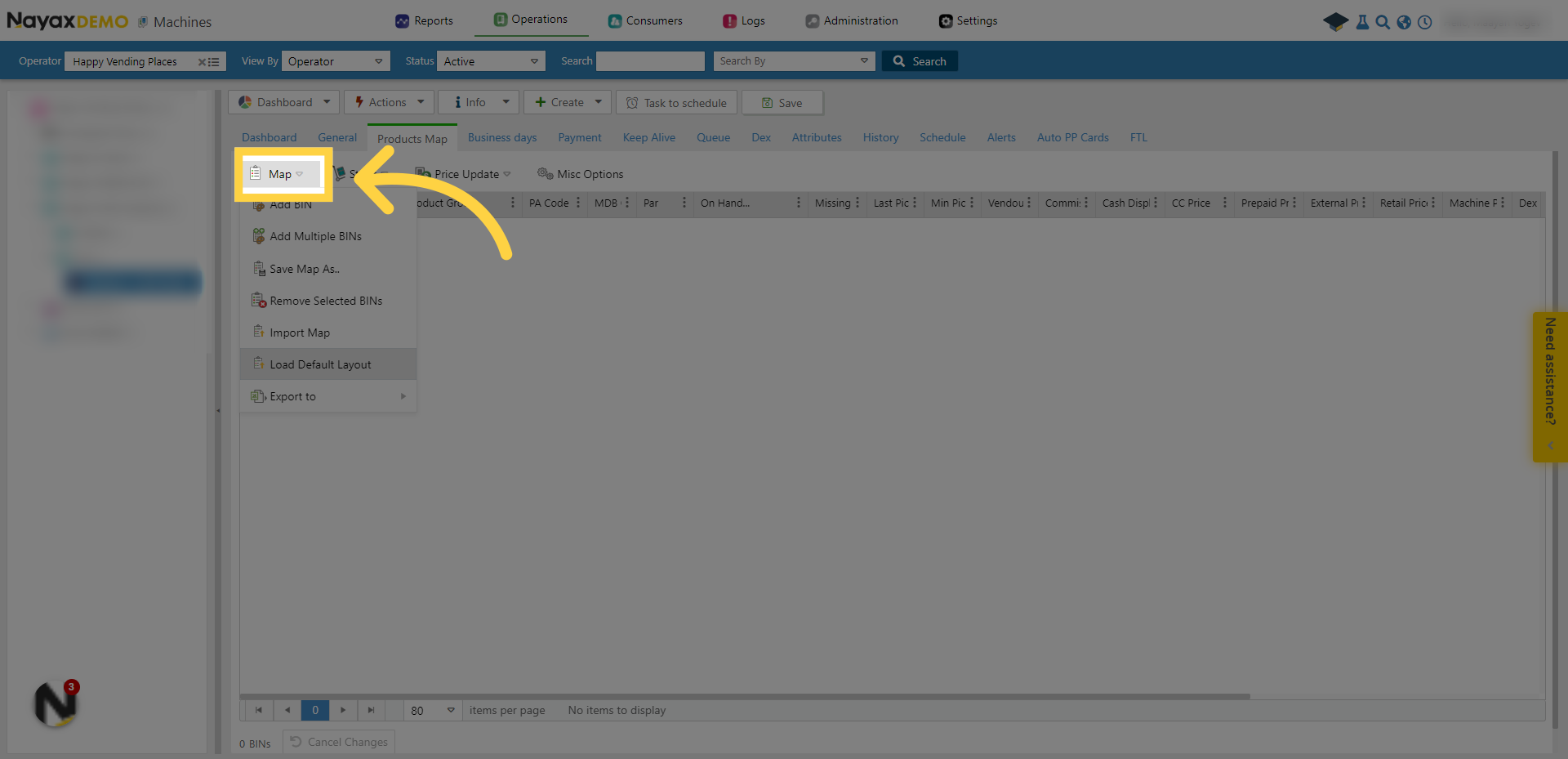
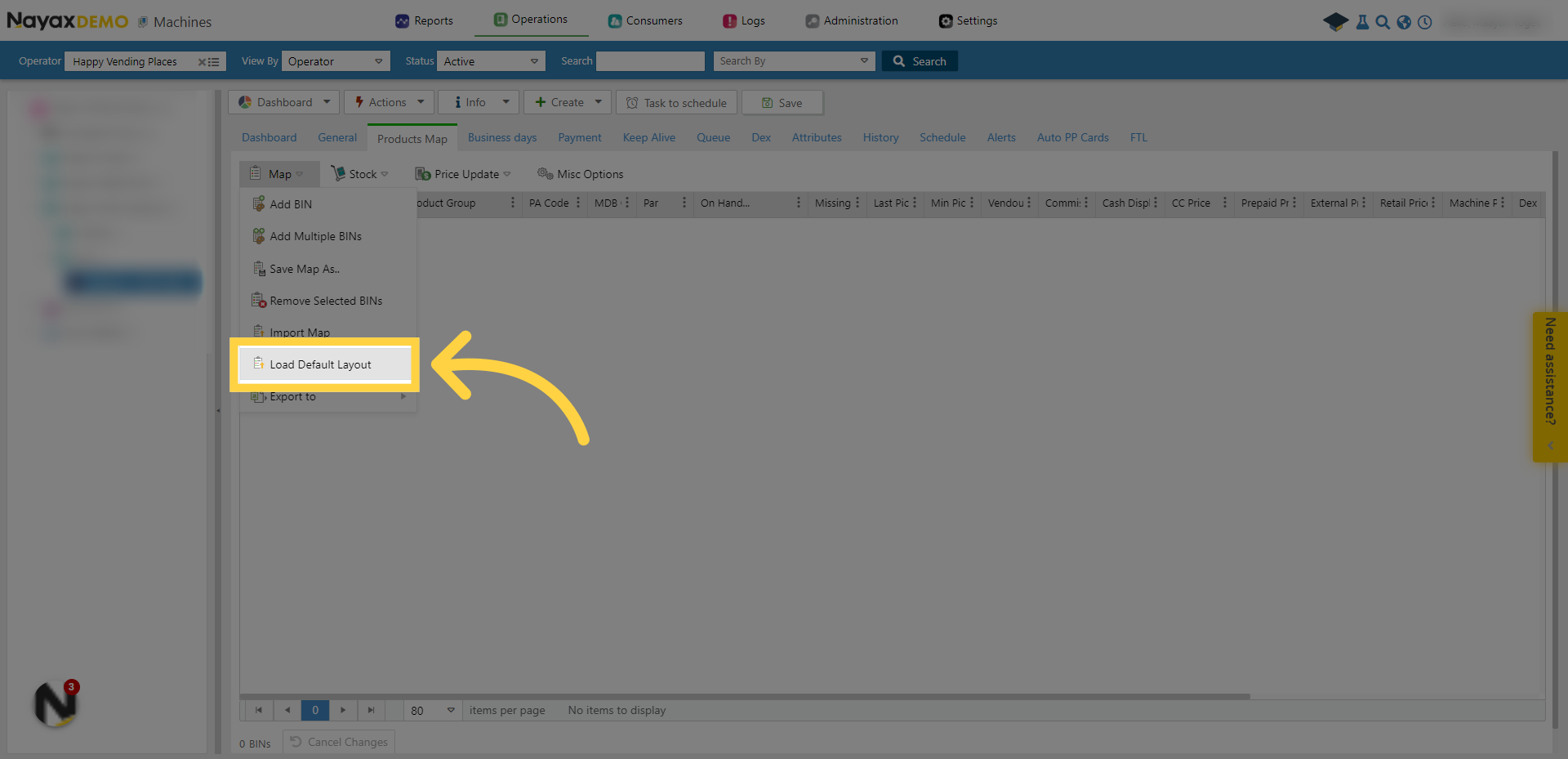
5. Click "Load Default Layout"
Choose "Load Default Layout" from the drop-down menu.
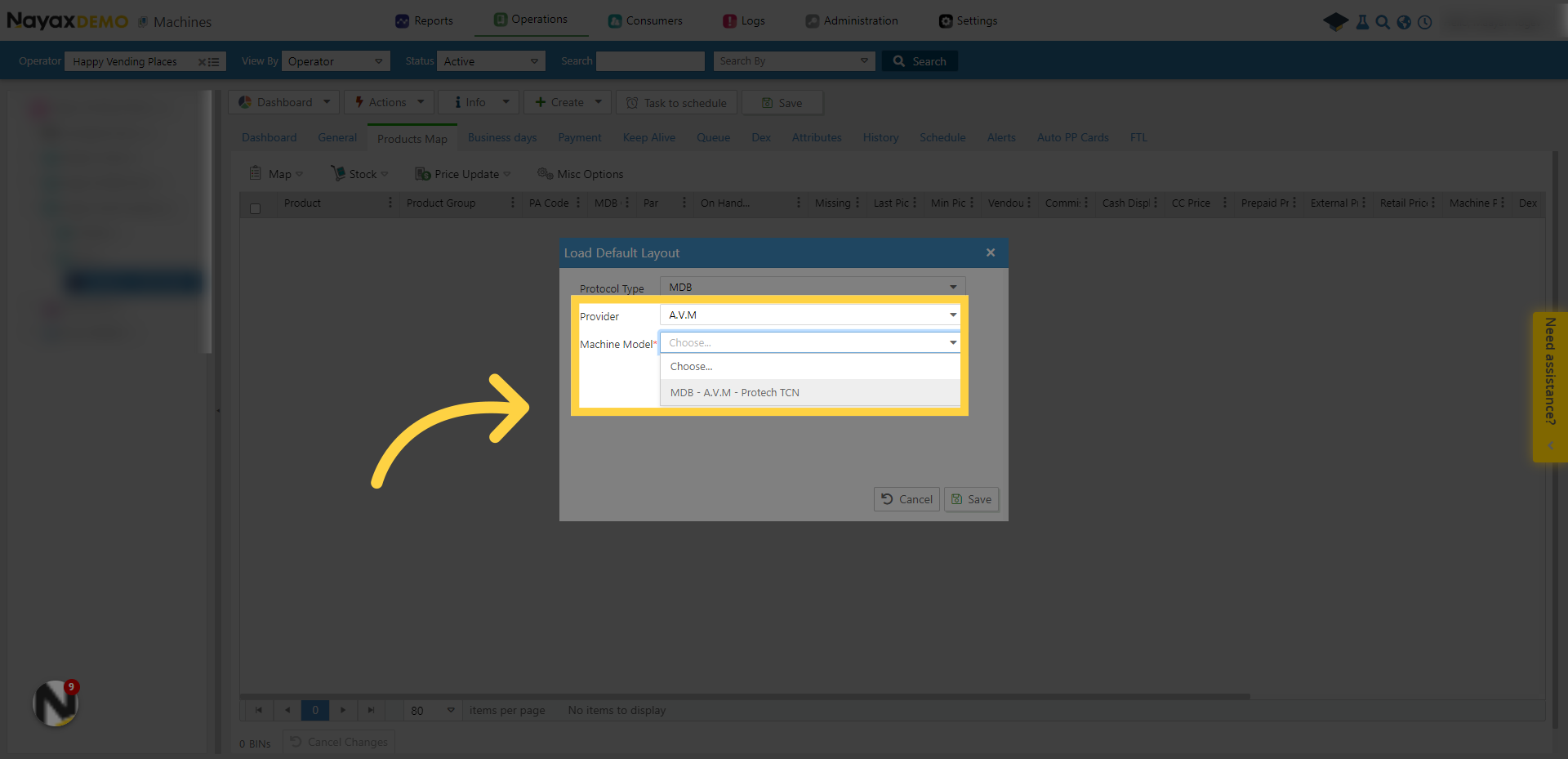
6. Choose the Provider and the Machine Model
Choose the Provider and the Machine Model.
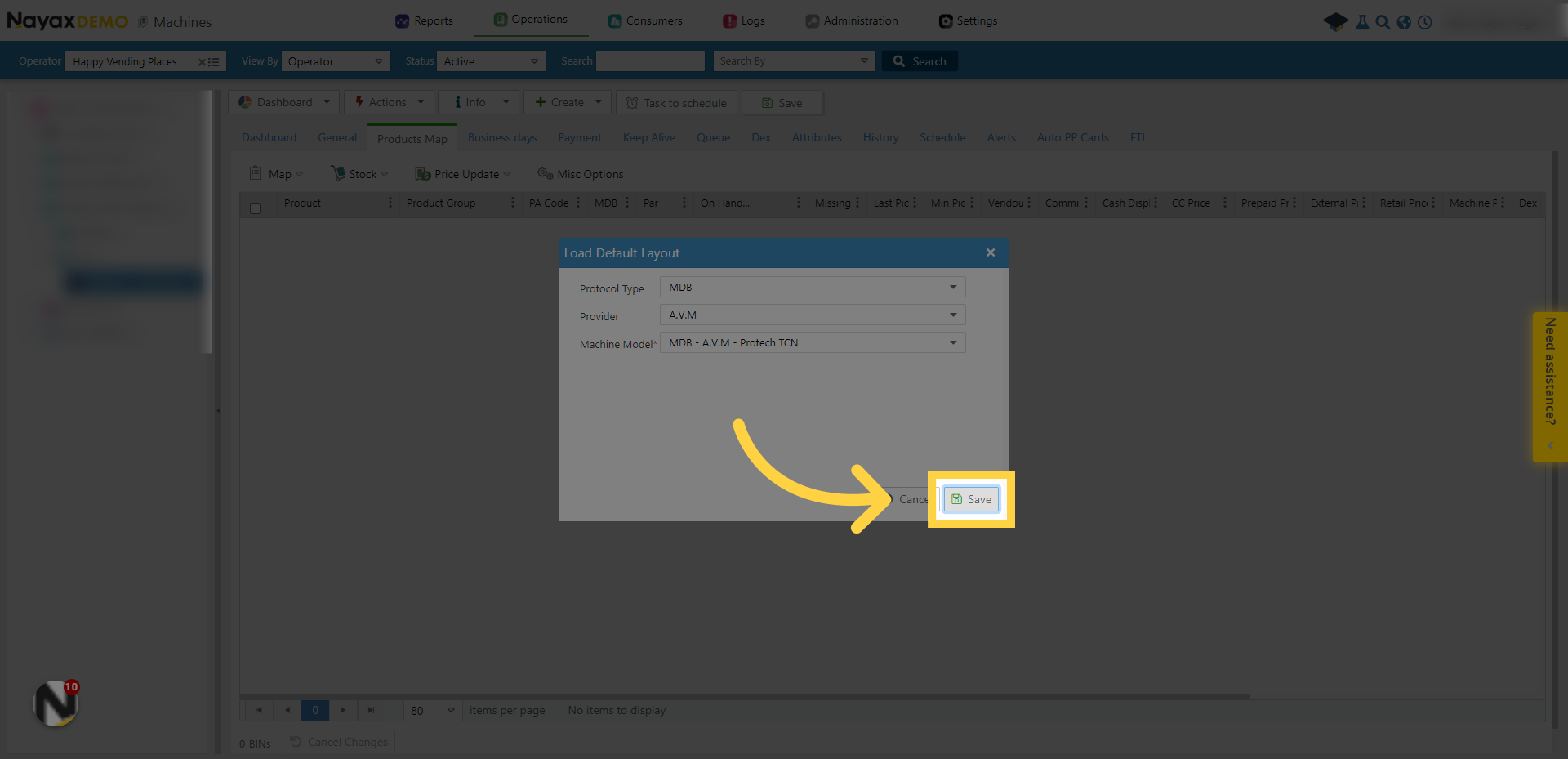
7. Click "Save"
Save the changes by clicking on "Save".
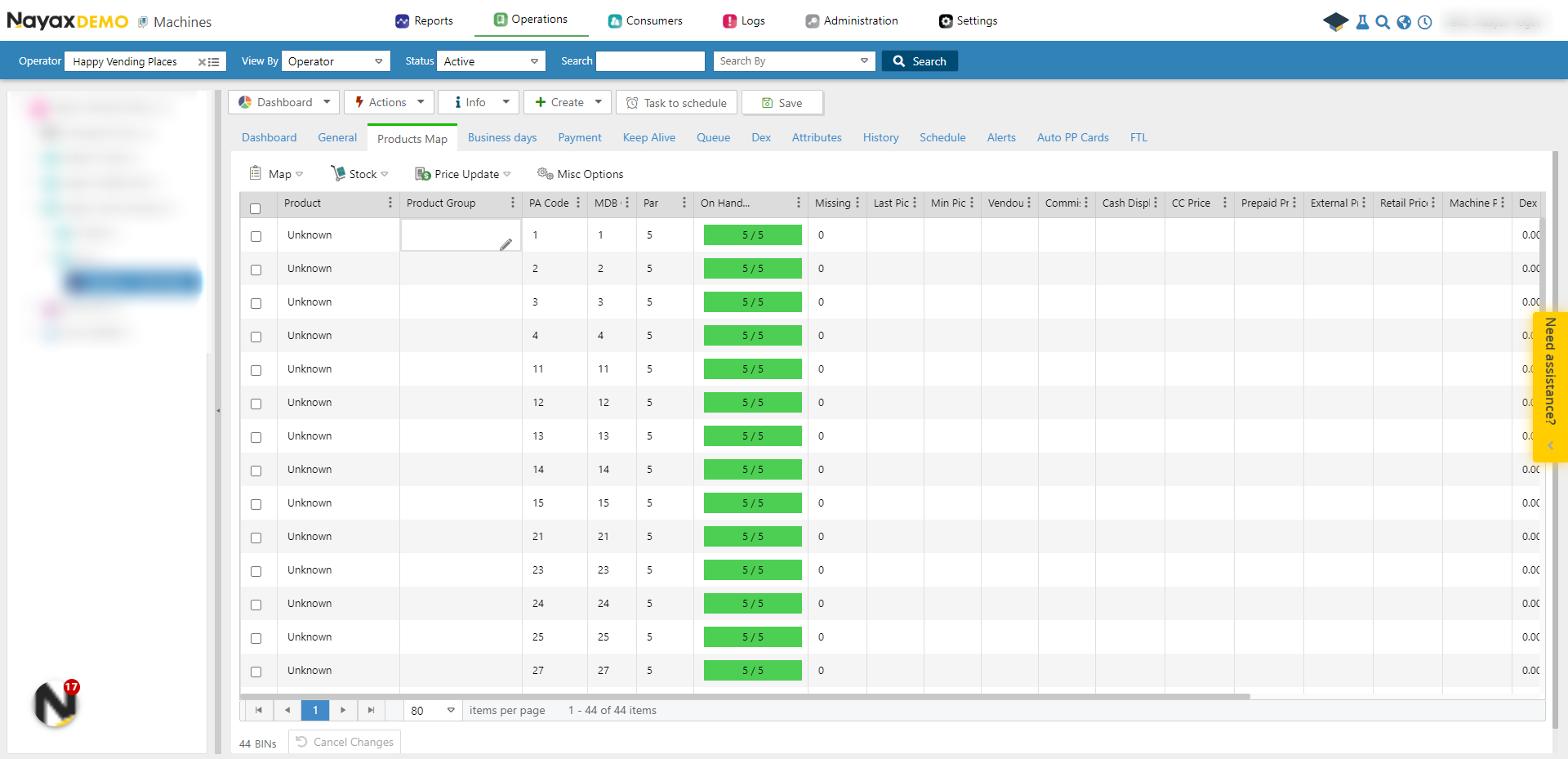
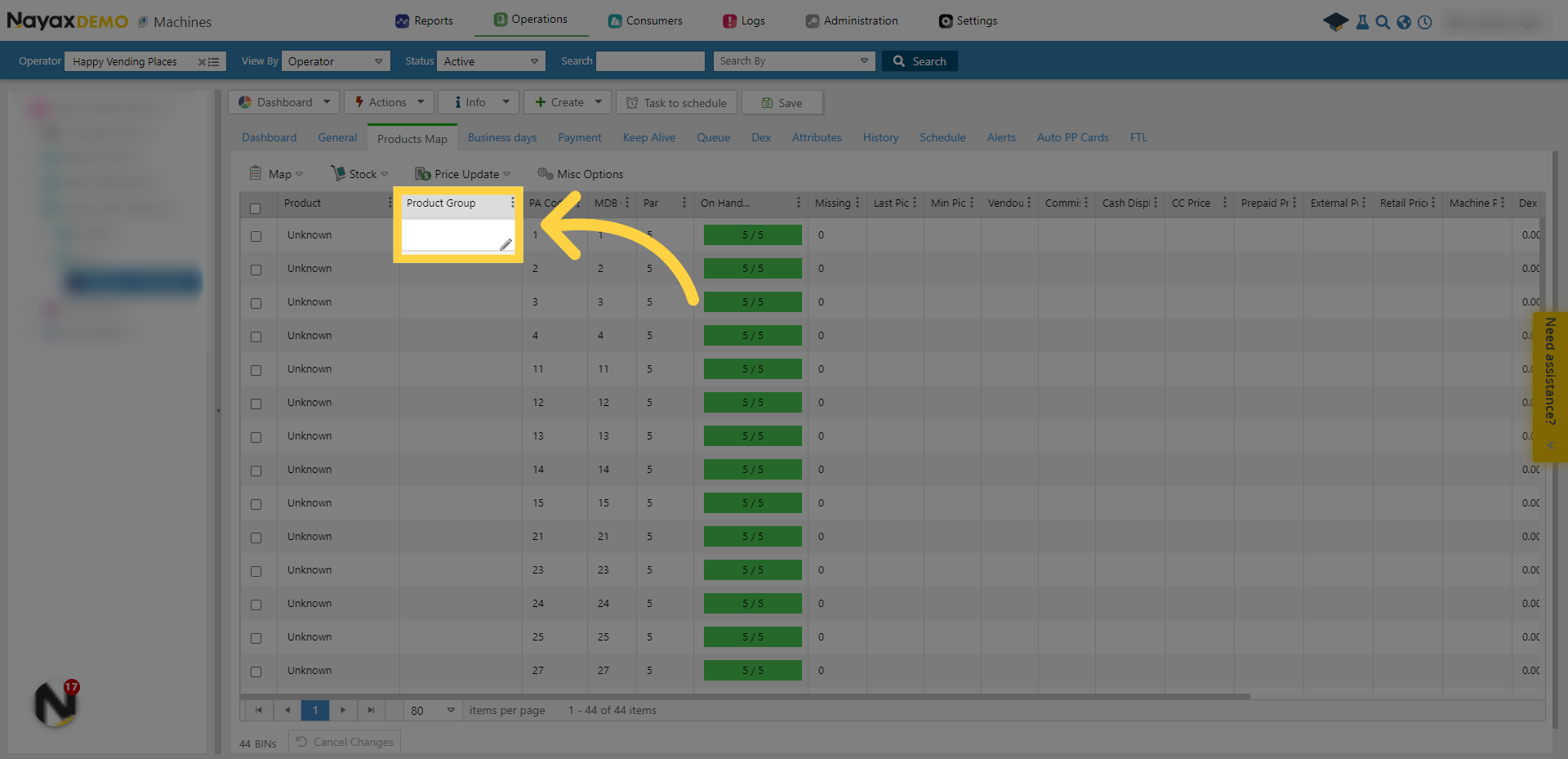
8. Click to choose Product Group
Now you've created a product map layout, so all the PA and MDB codes are ready for you. Simply edit the name and price of the products.
9. Select a Product Group
Select a Product Group.
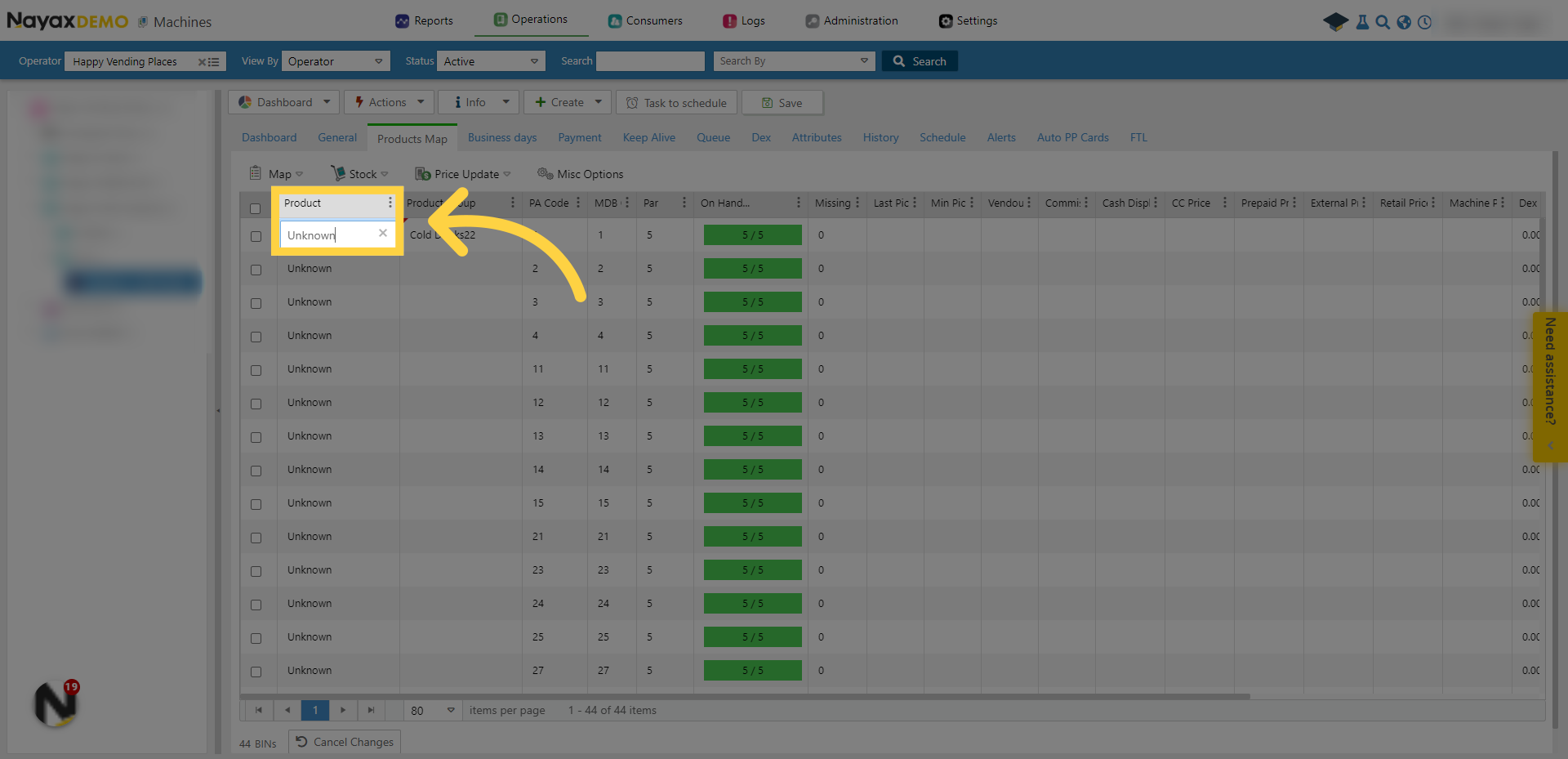
10. Select a product
Then open the product menu and choose the desired product.
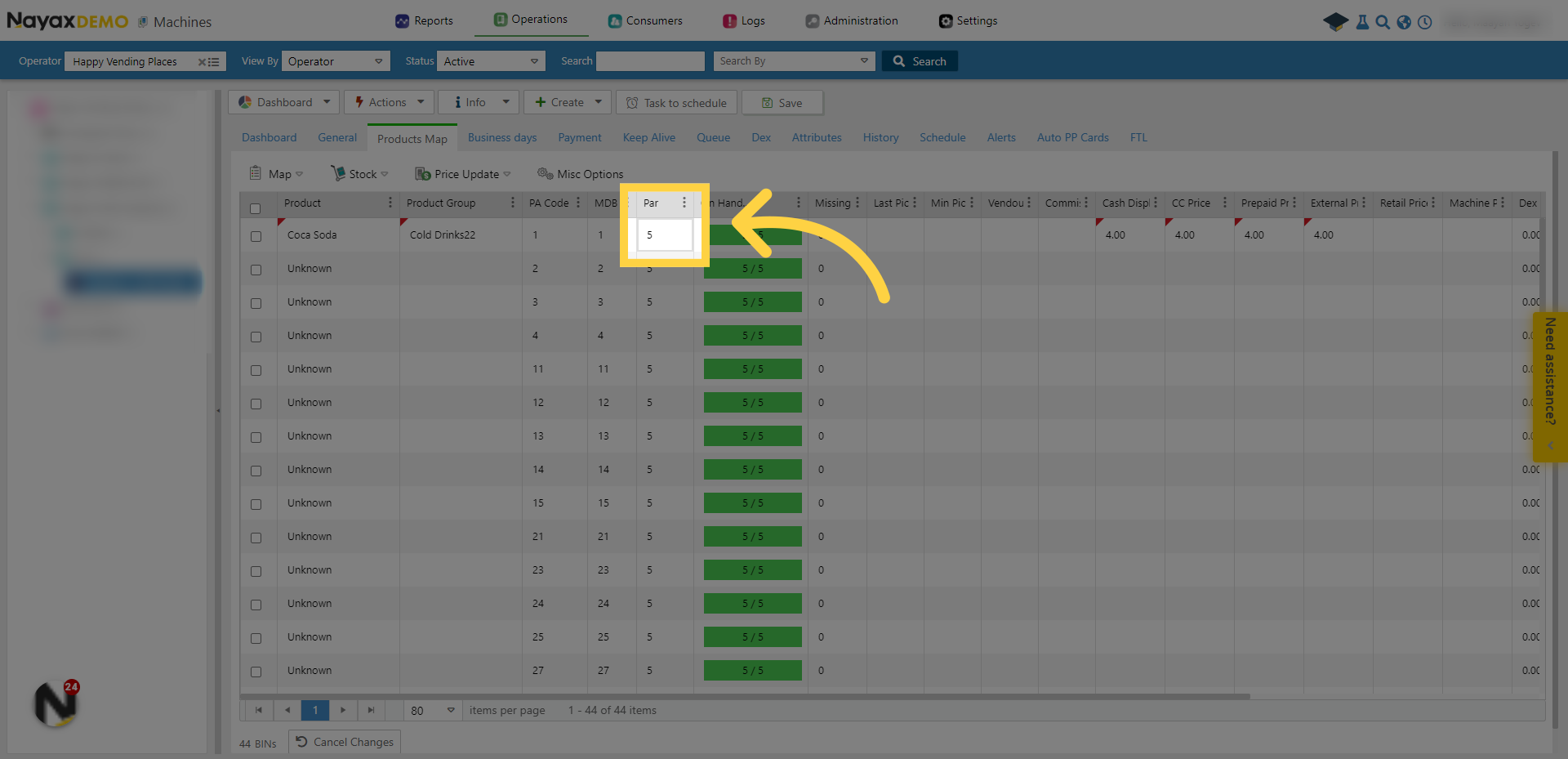
11. Edit the Par amount
You can edit the Par amount.
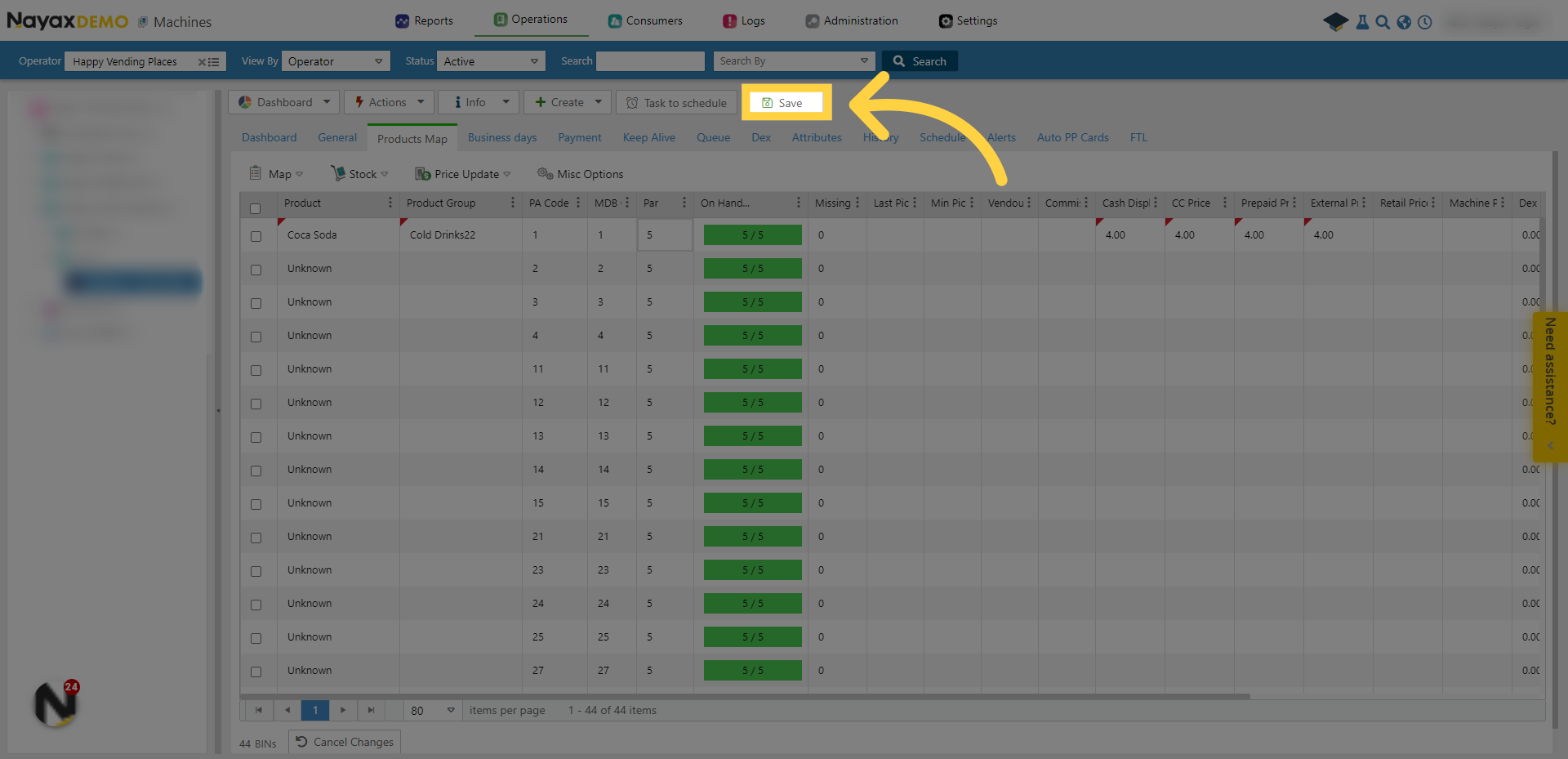
12. Save
Save the changes.
This guide covered loading a default layout for a product map using Nayax Core. For more videos, check out our Youtube page. Thanks for watching!
Open in App