
Operations | Change the device's display language / audio
To view additional videos, click here, or subscribe to our Youtube Channel
This guide will show you how to change the audio and display language on your device using Nayax Core. This way you can make your machine accessible according to the location where it is located and the consumers that purchase from your machines.
Go to my.www.nayax.com
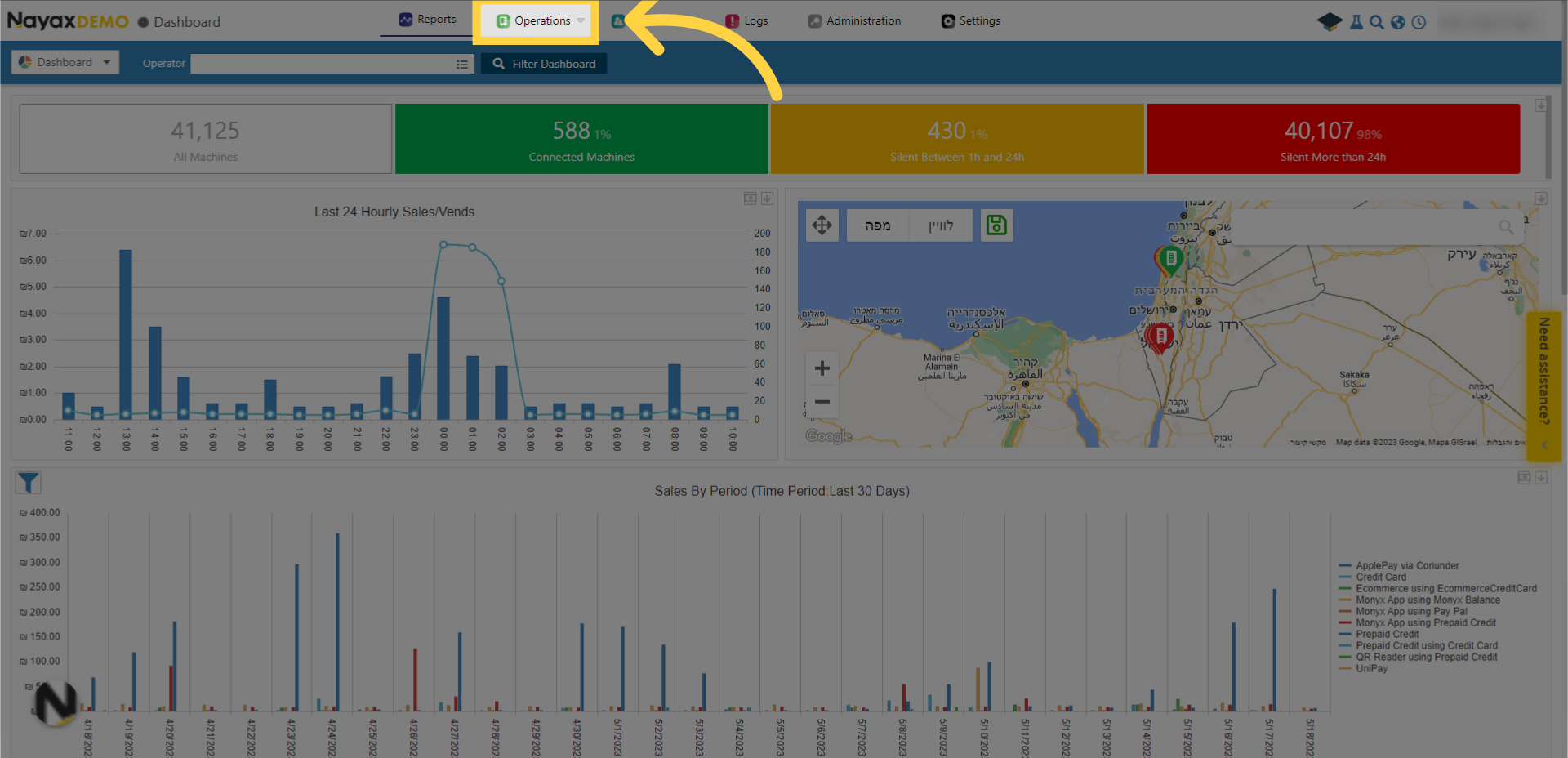
1. Click "Operations"
Open the "Operations" drop-down menu.
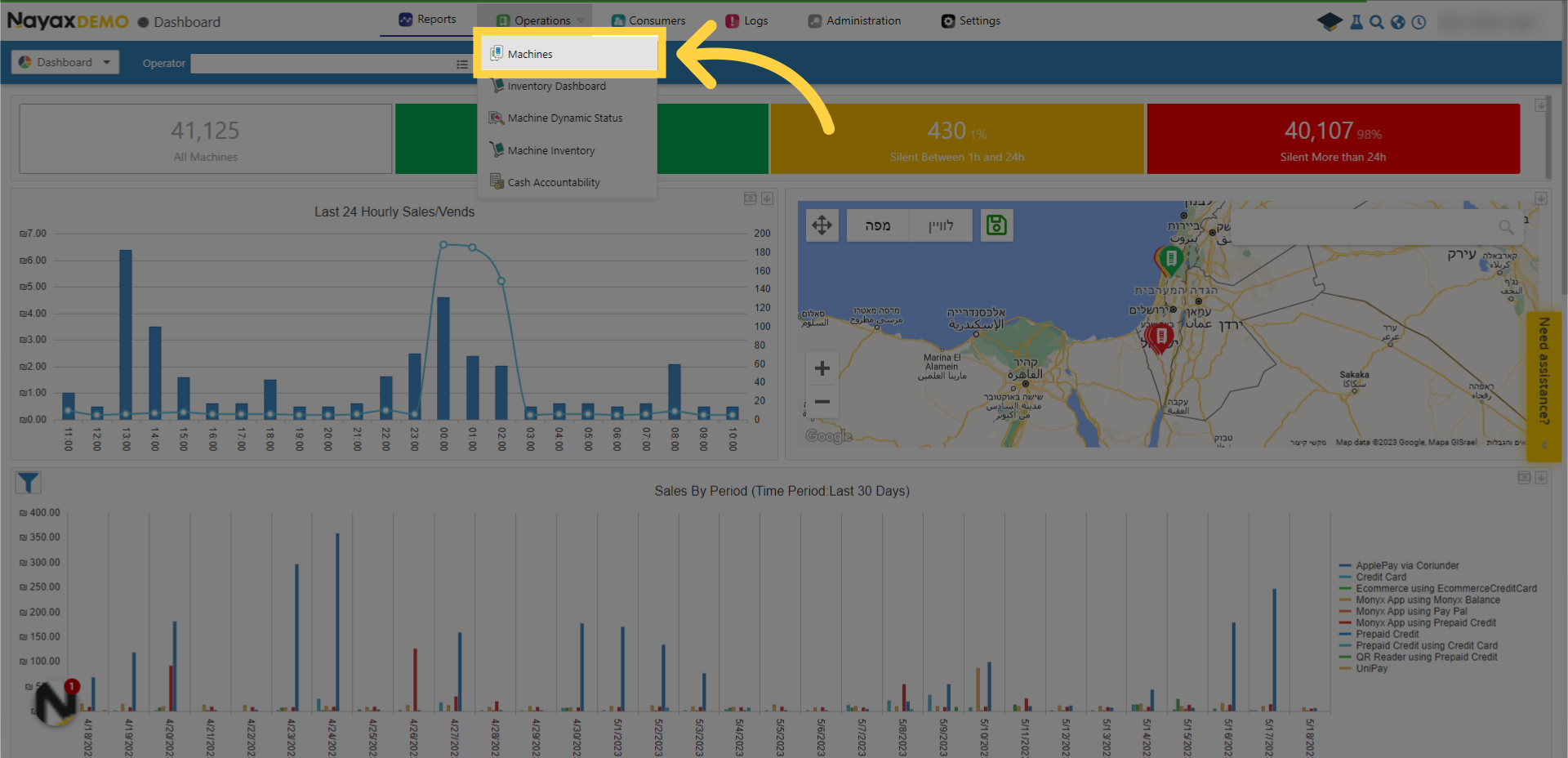
2. Click "Machines"
Go to the "Machines" section on the drop-down menu and locate your machine.
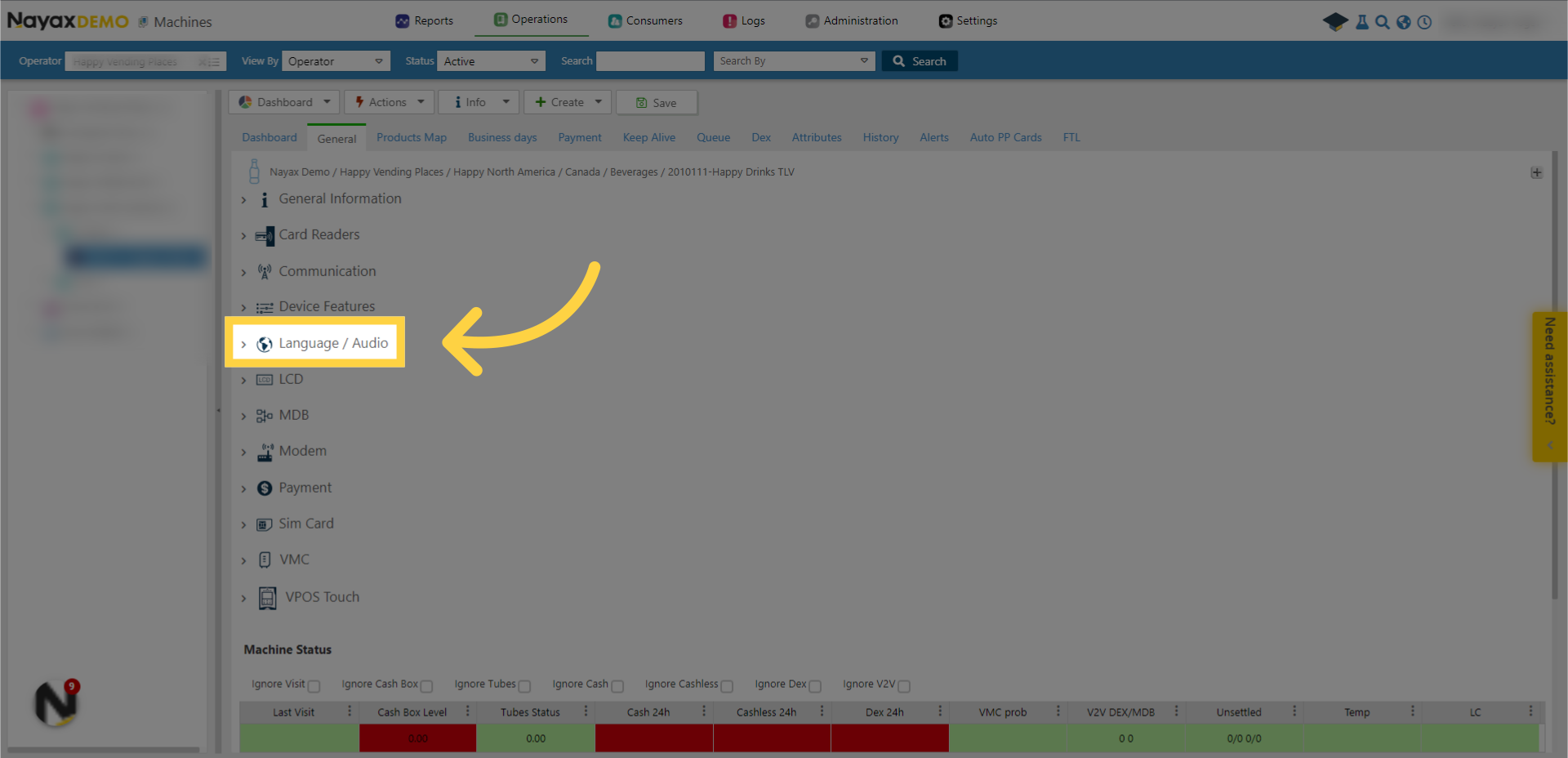
3. Click "Language / Audio"
After you located your machine, click "Language / Audio" settings.
4. Tick boxes
Tick the relevant boxes you wish to edit and locate the relevant information.
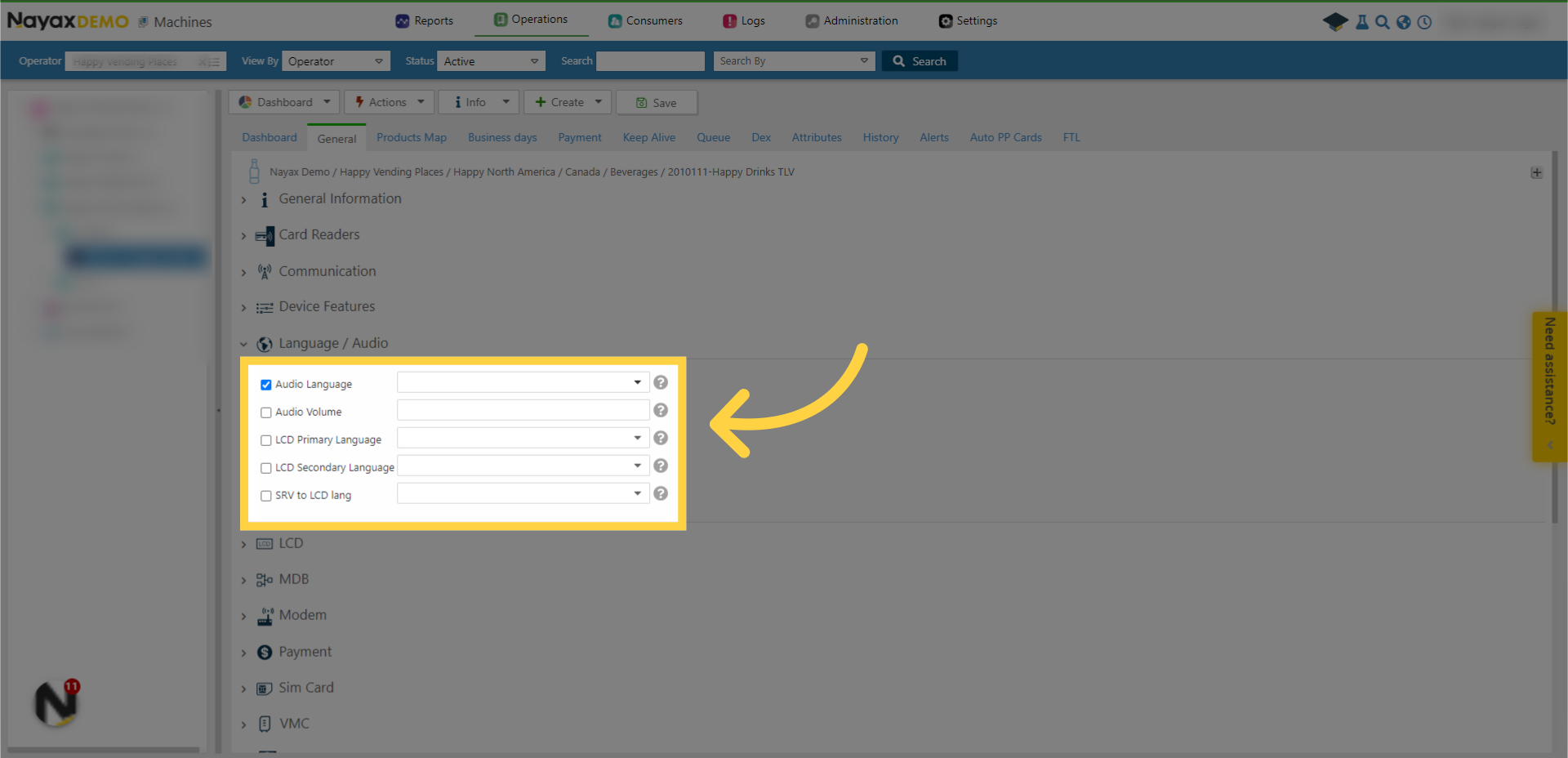
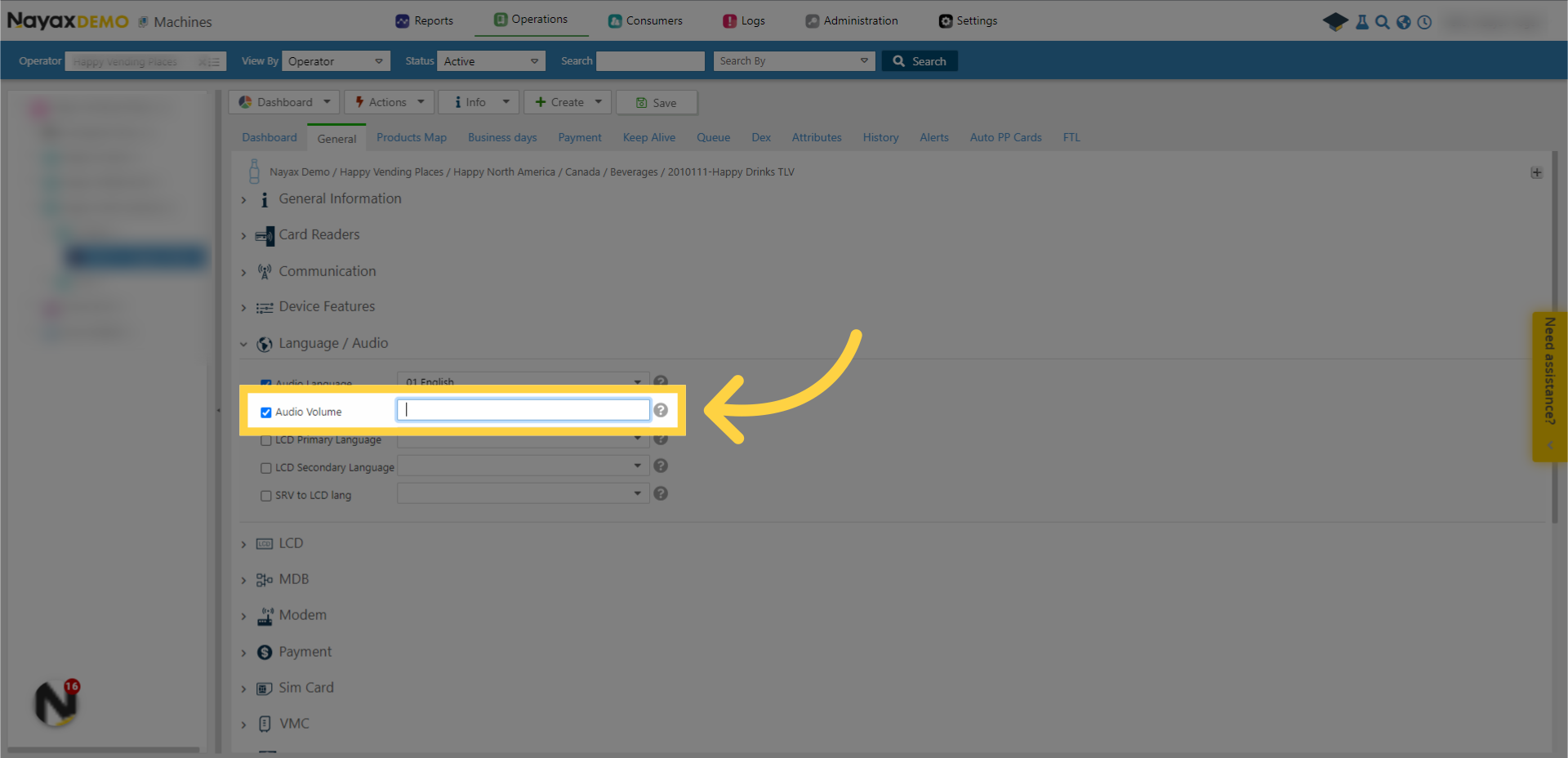
5. Choose volume level (0-85)
To set the volume coming from the device, type a number in this attribute between 0 - which will mute the device, and 85 - which will set the volume to the highest.
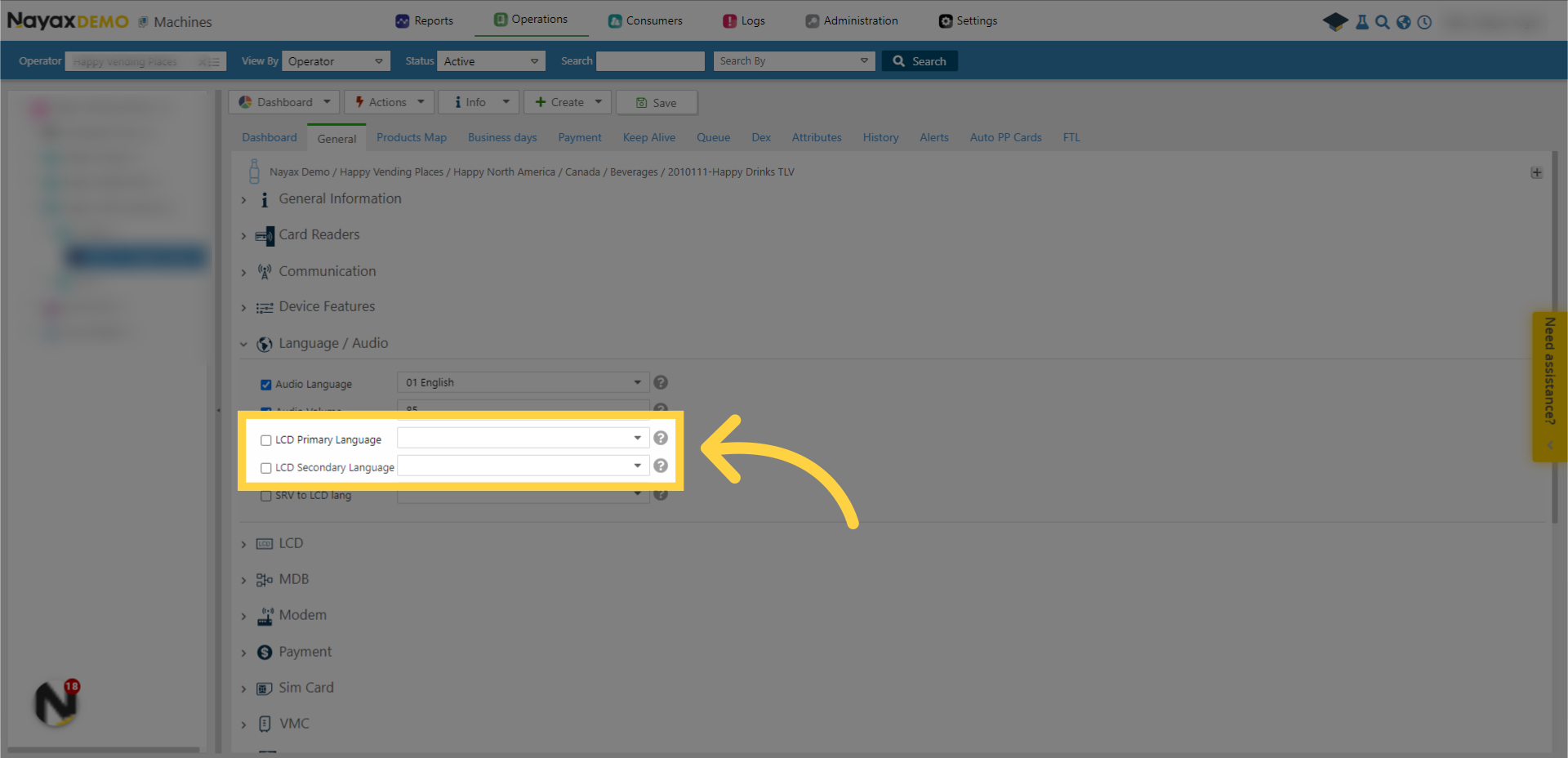
6. Add primary / secondary language option
You can also add the primary and secondary language for your machine.
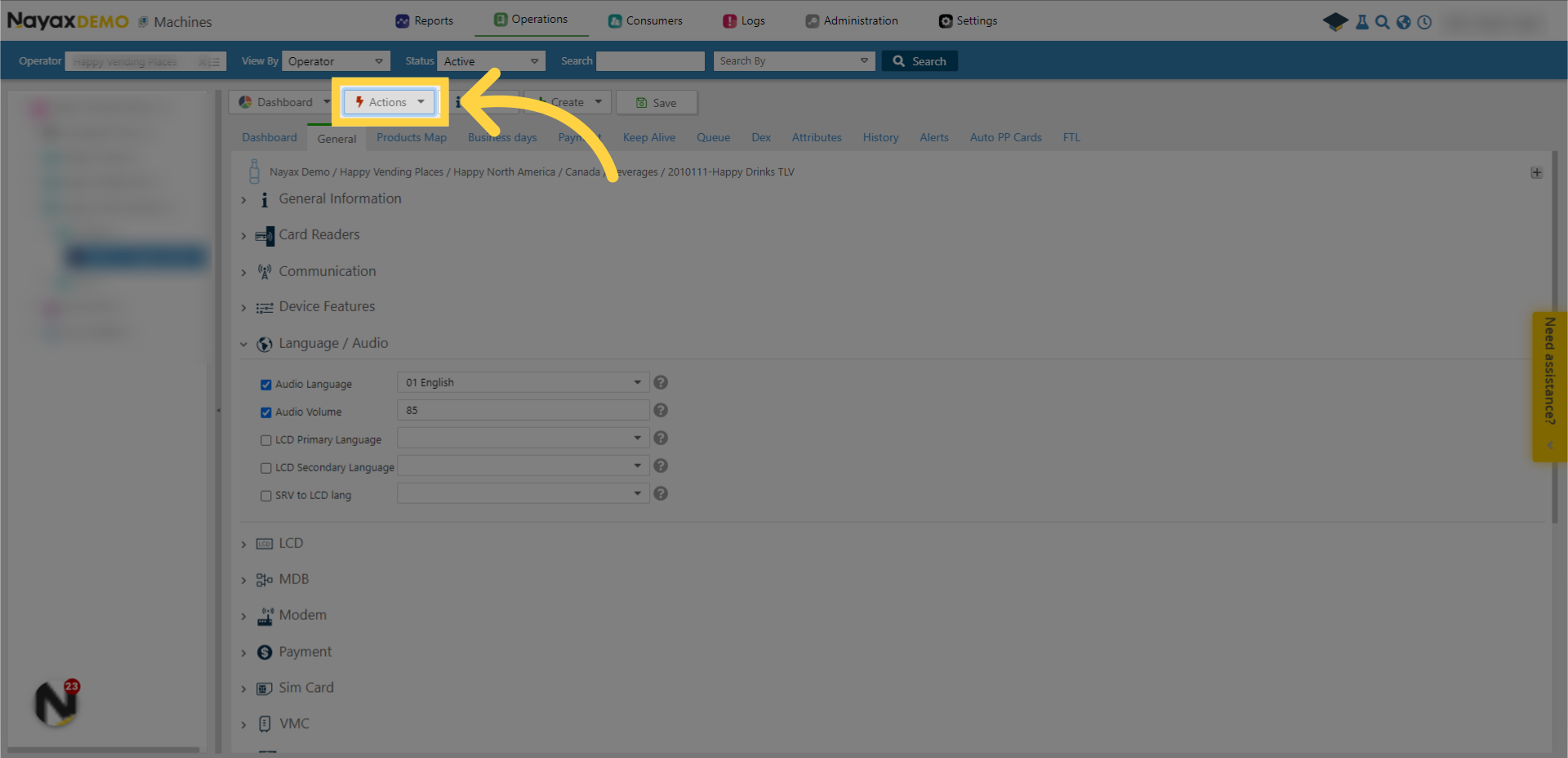
7. Click "Actions"
Click on the "Action" drop-down menu.
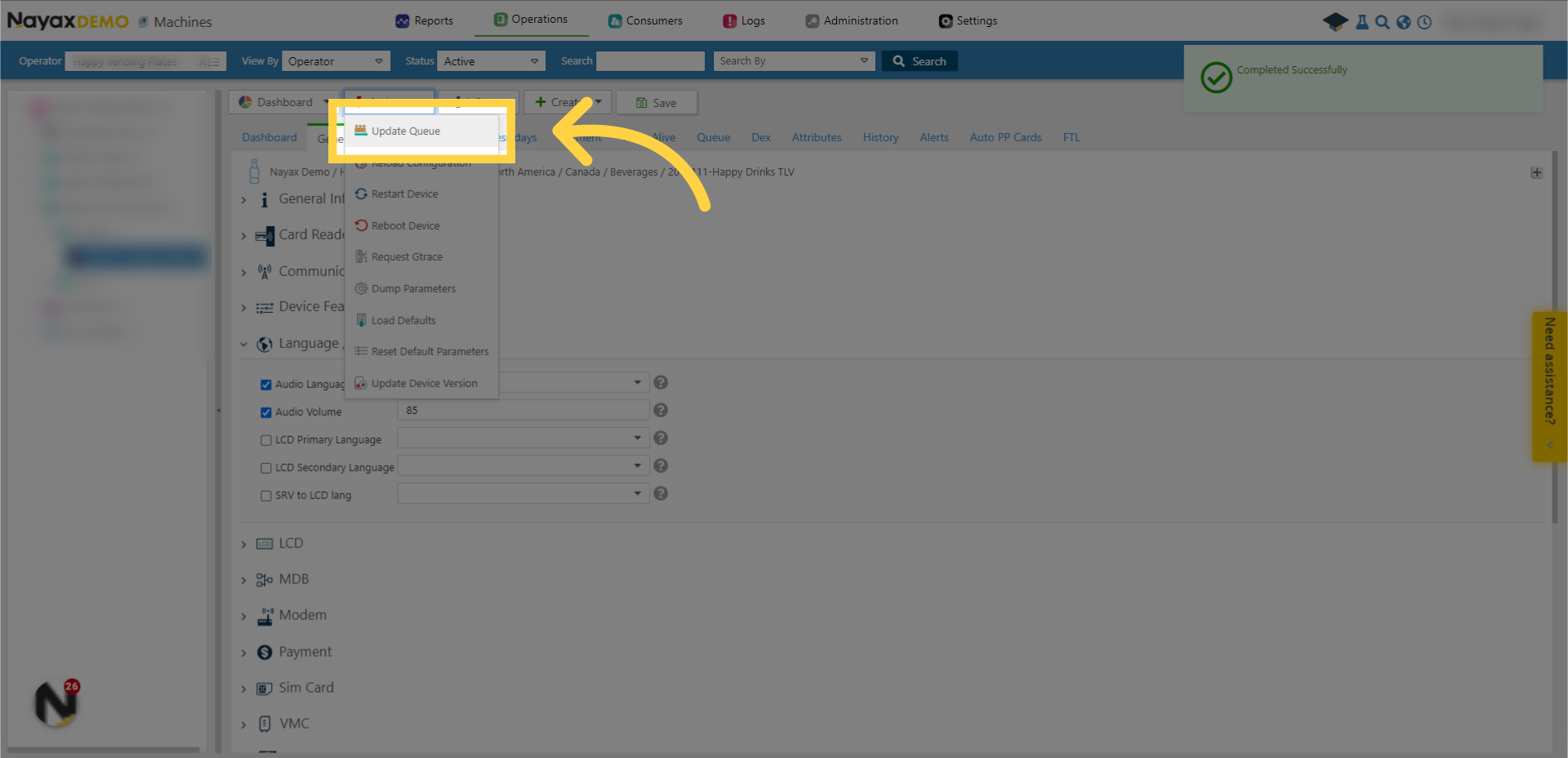
8. Click "Update Queue"
Click "Update Queue" to send the new attributes to the devices queue.
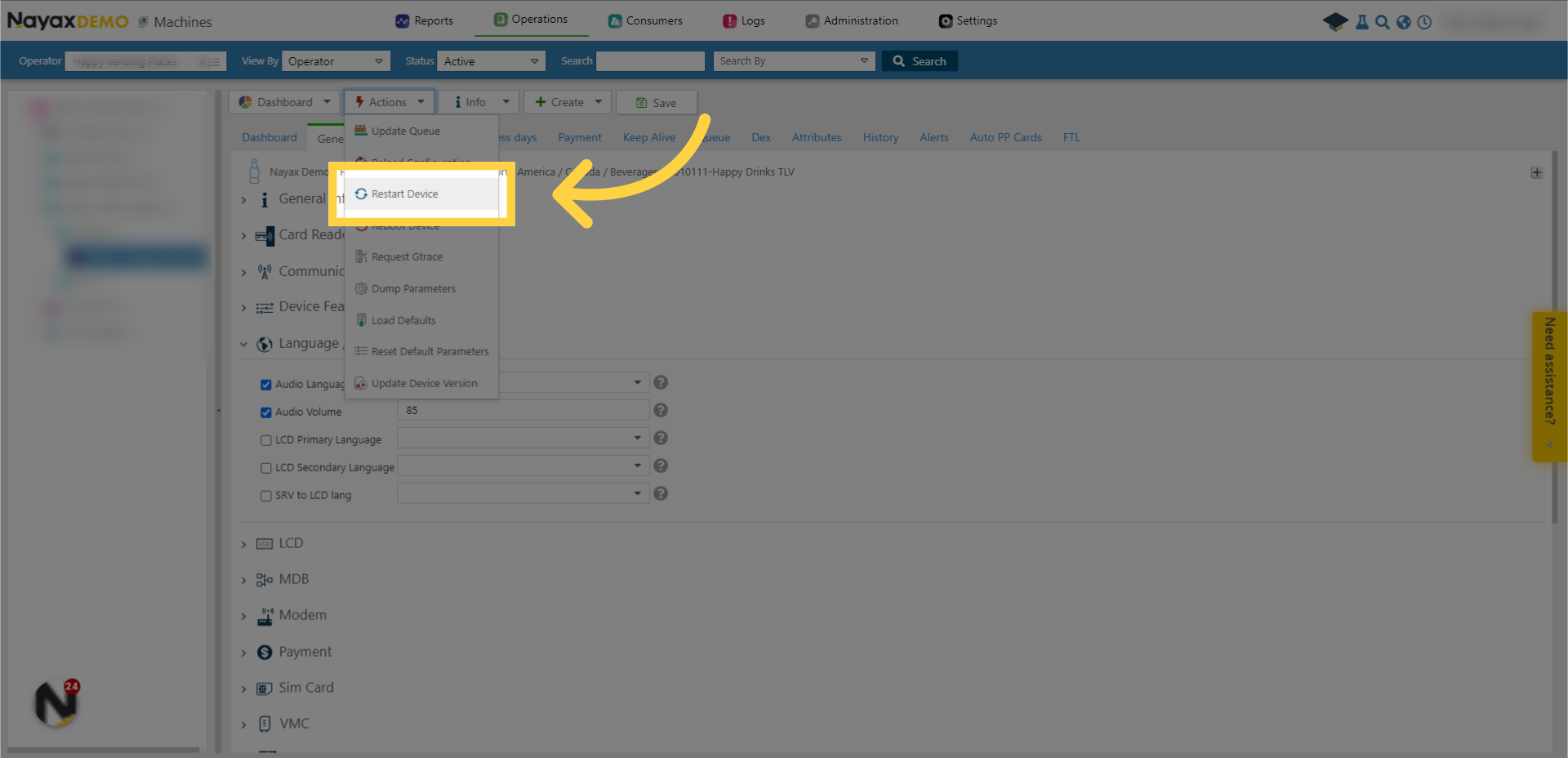
9. Click "Restart Device"
You can also choose "Restart Device" to immediately update the attributes on the machine.
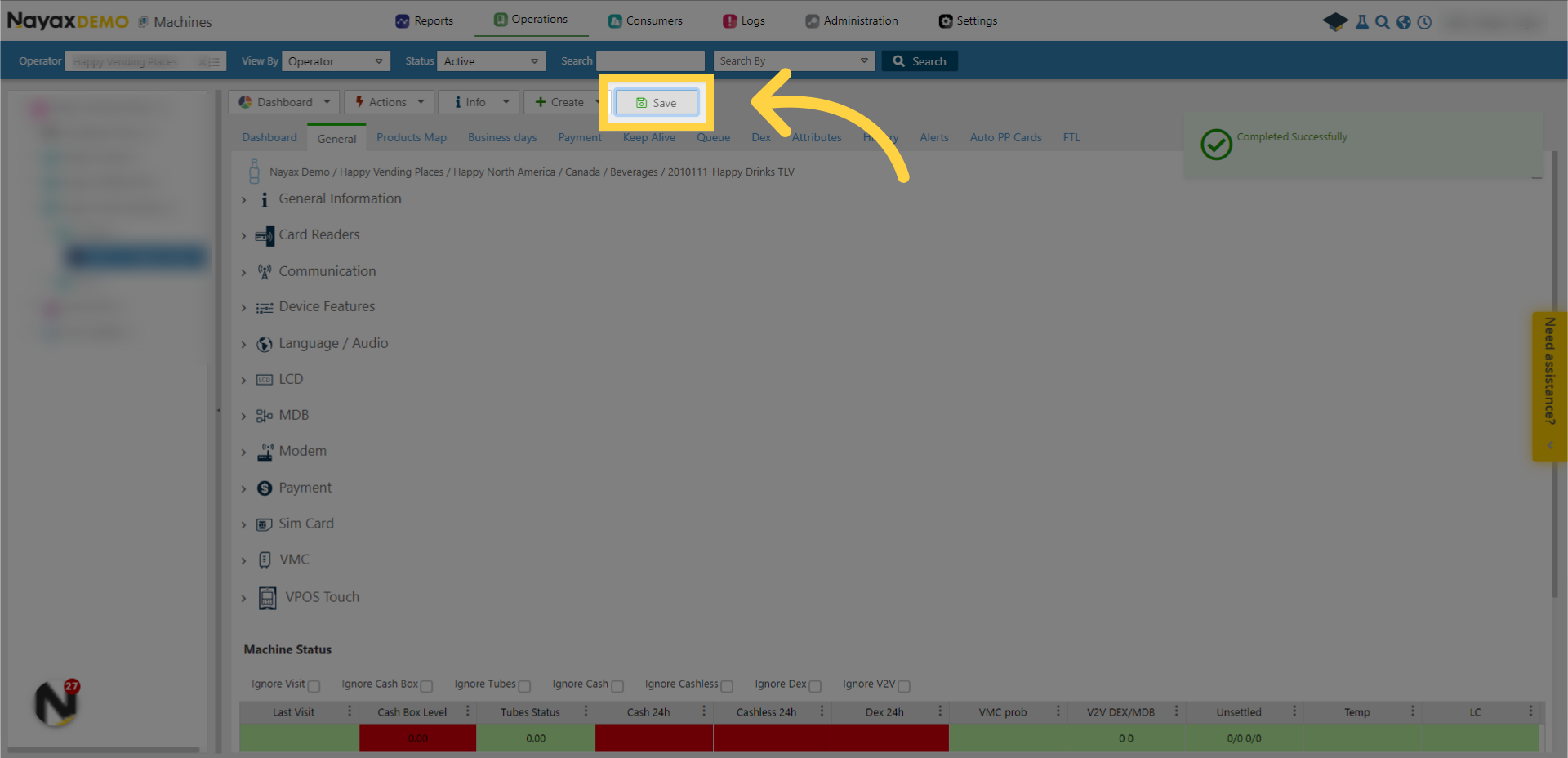
10. Click "Save"
Don't forget to save the changes when done.
This guide covers the steps required to change the audio and the display language on Nayax Core. For more videos, check out our Youtube page. Thanks for watching!