
Operations | Change the default code for the technician mode
To view additional videos, click here, or subscribe to our Youtube Channel
This guide explains how to change the default code for the technician mode so that in any technical treatment - they will be required to enter a code and only then will be able to handle the machine.
Go to my.www.nayax.com
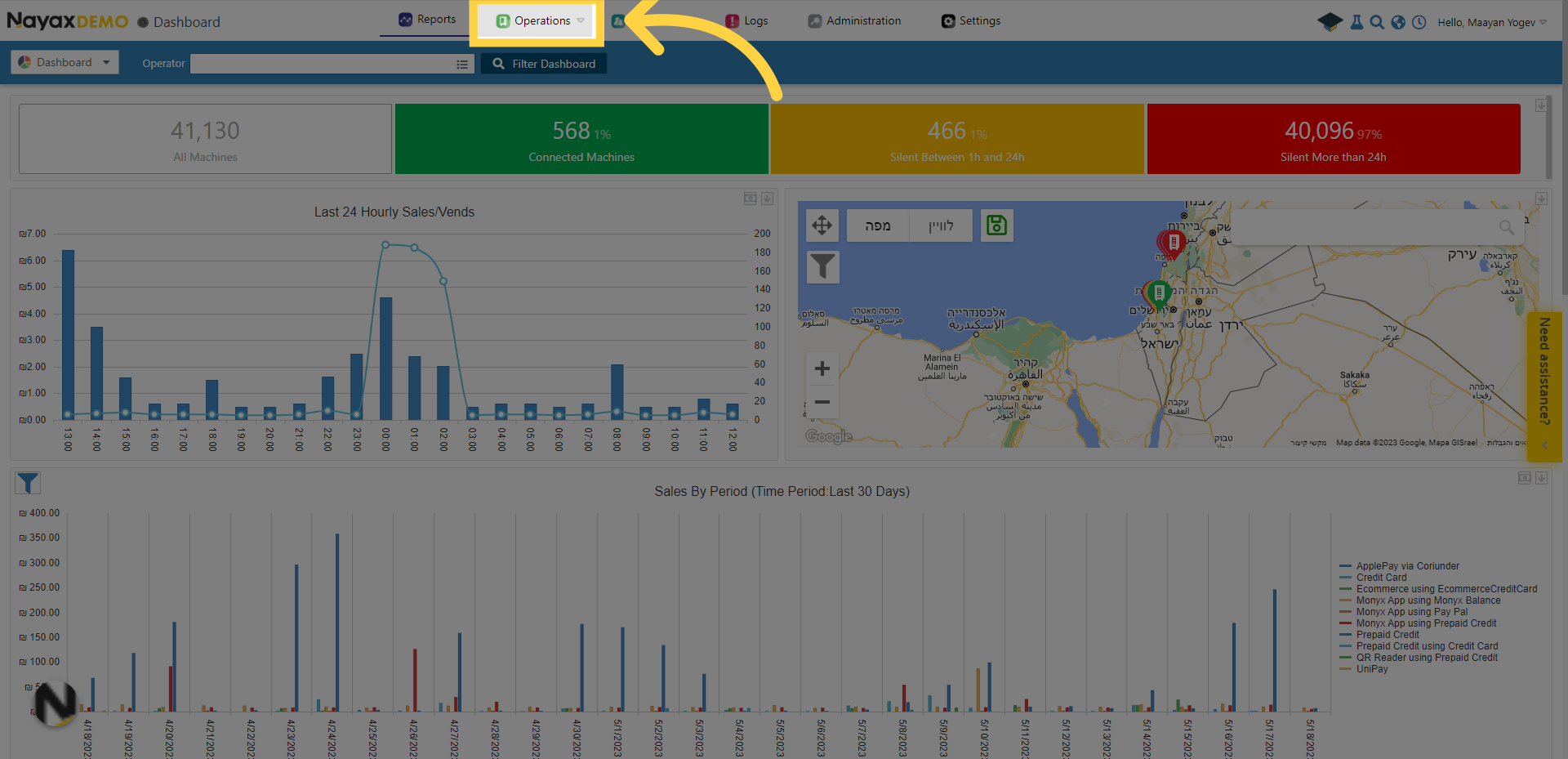
1. Click "Operations"
Click "Operations" option in Nayax Core.
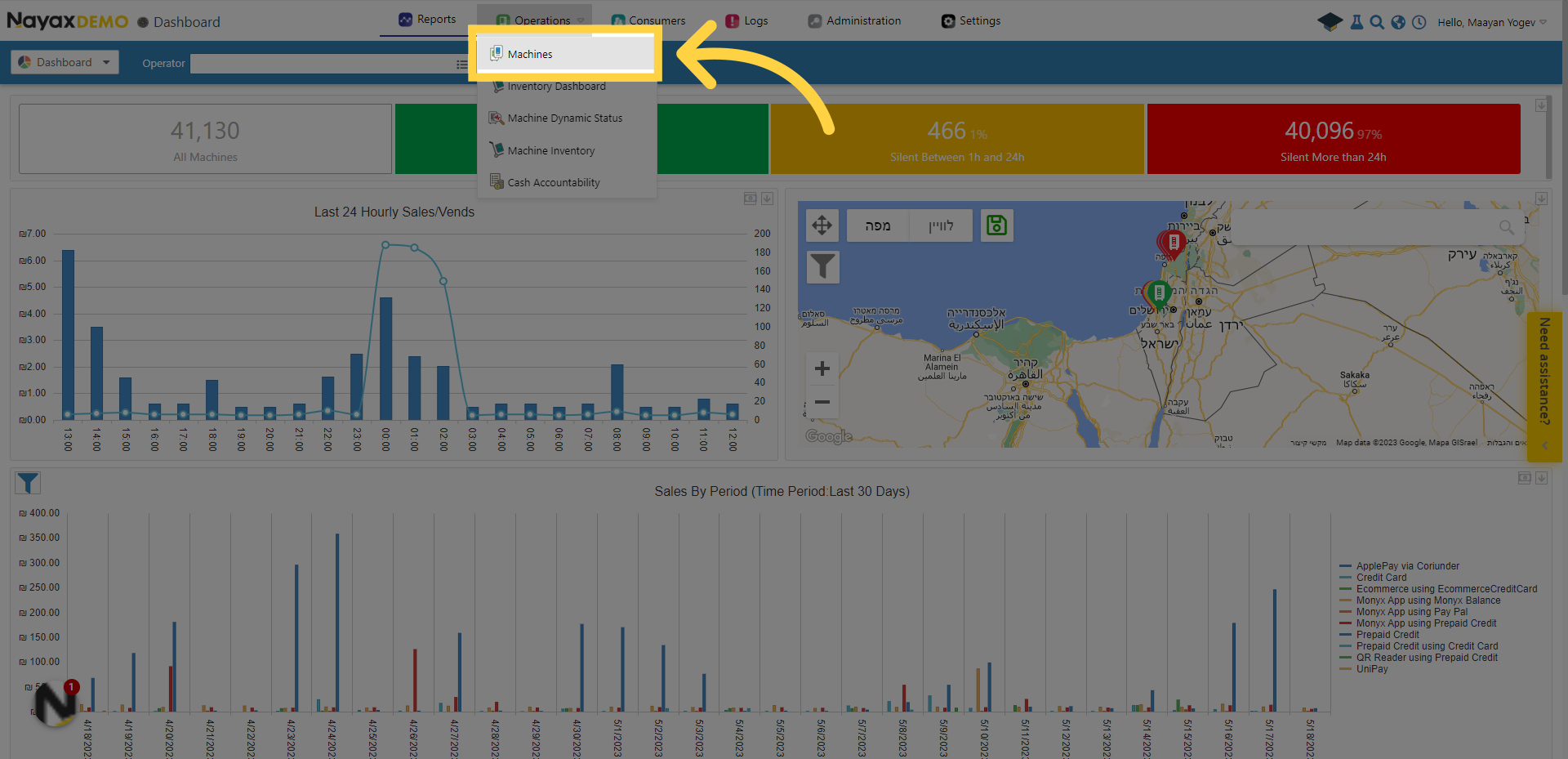
2. Click "Machines"
Click on the "Machines" option in the drop-down menu and locate your machine.
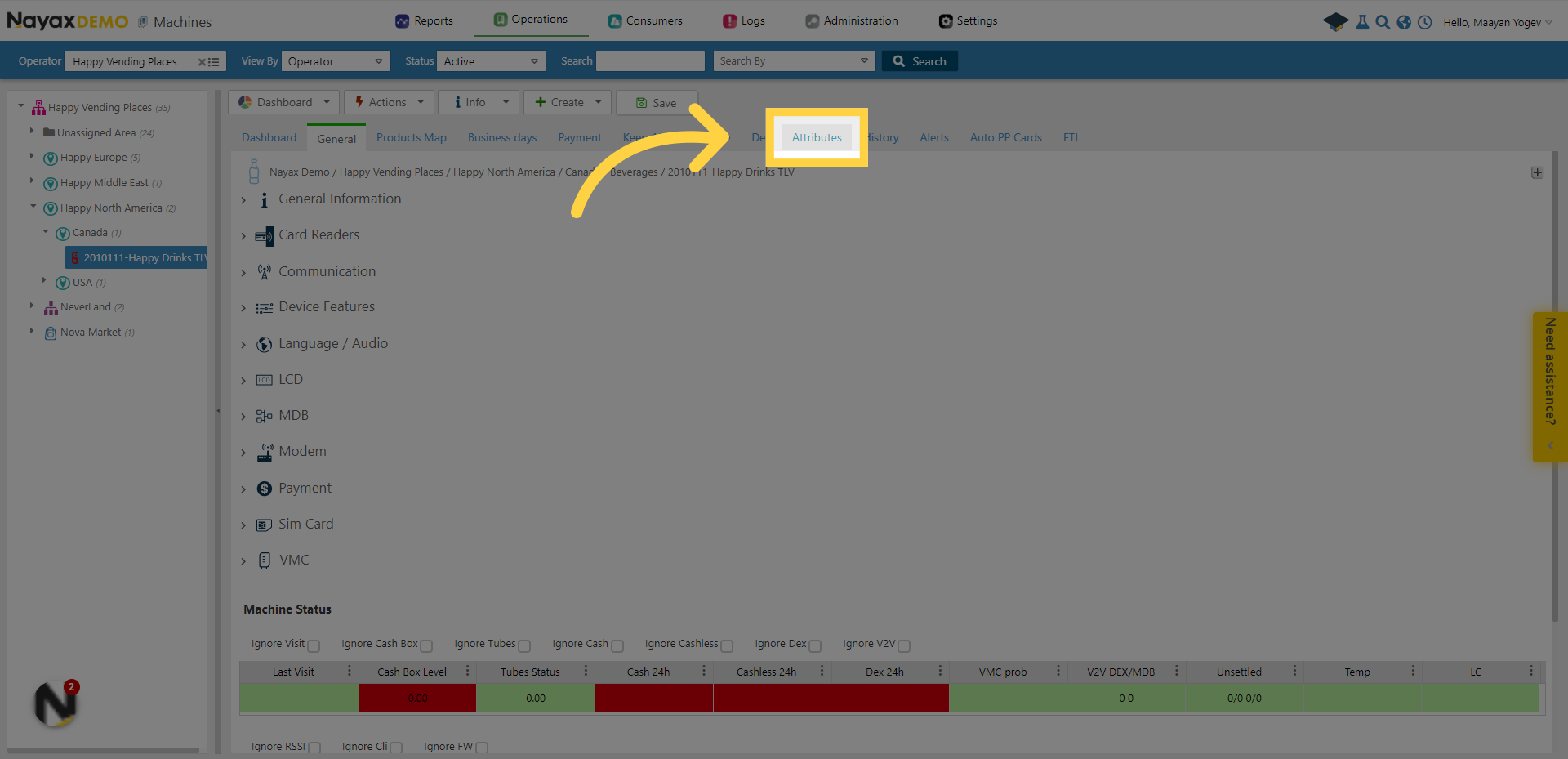
3. Click "Attributes"
After you located the machine, select the "Attributes" option.
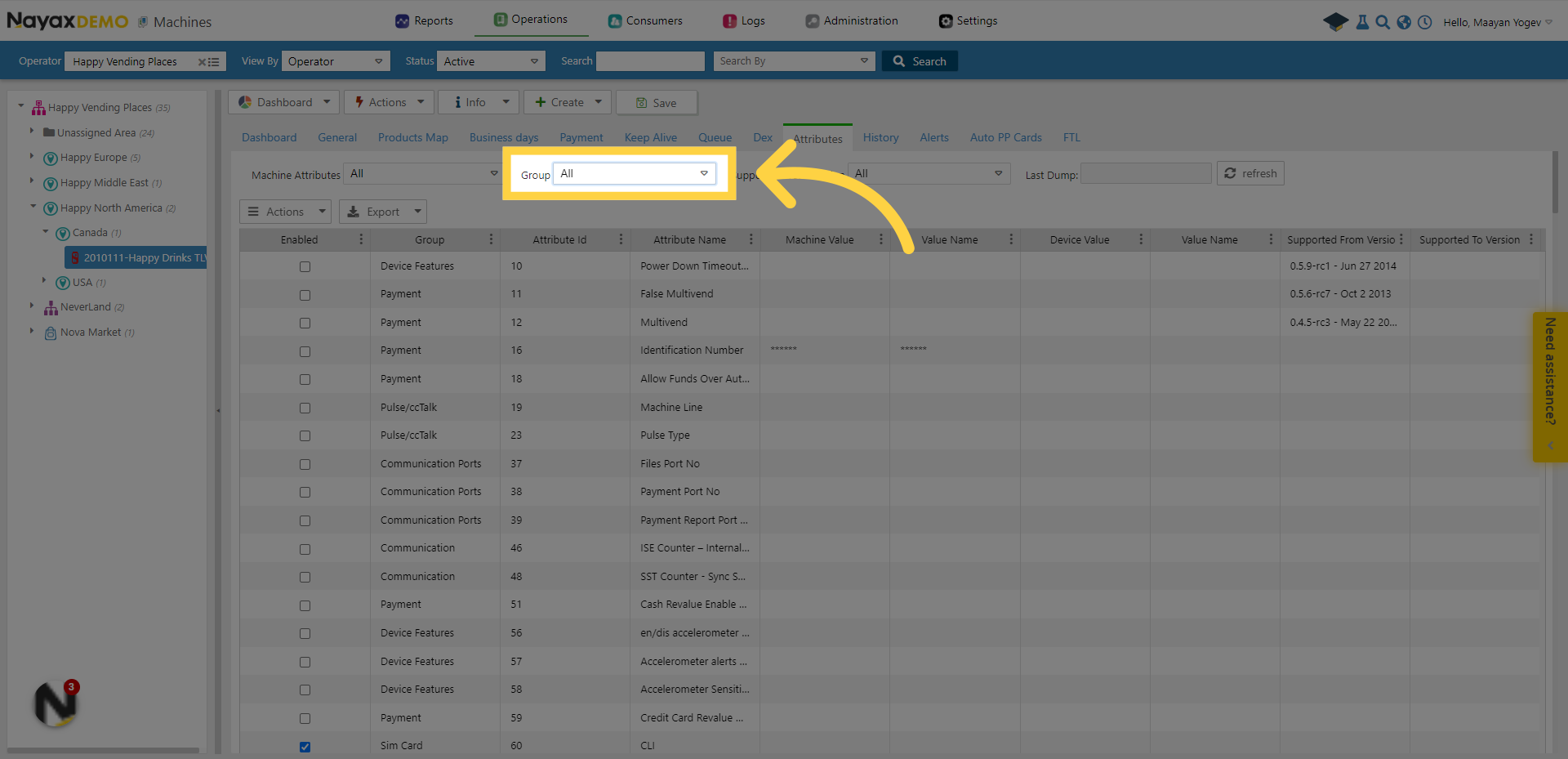
4. Open "Group"
Open the "Group" drop-down menu.
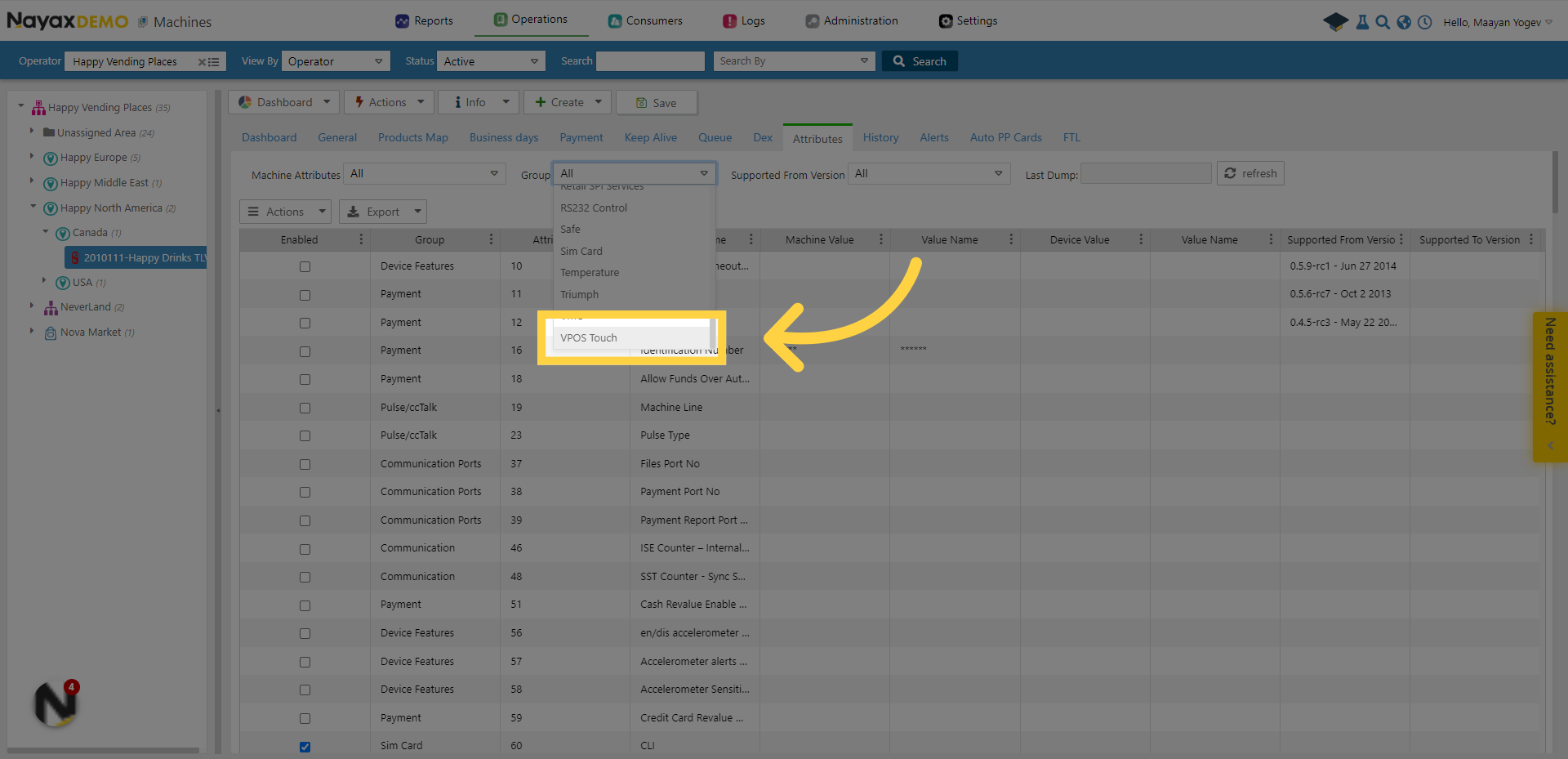
5. Click "VPOS Touch"
Select "VPOS Touch".
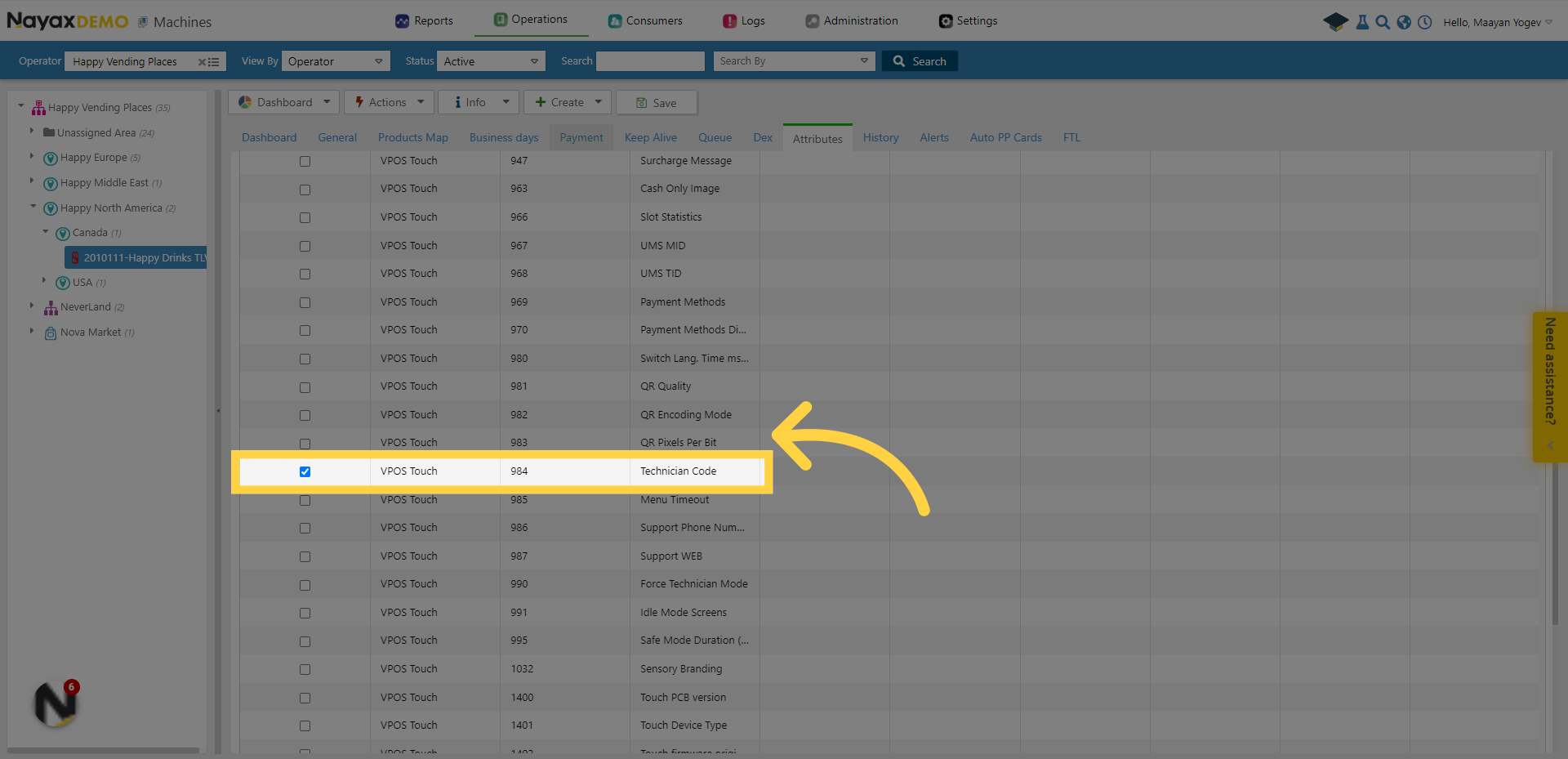
6. Tick this Row
Tick the row of the 984 code for "Technician Code".
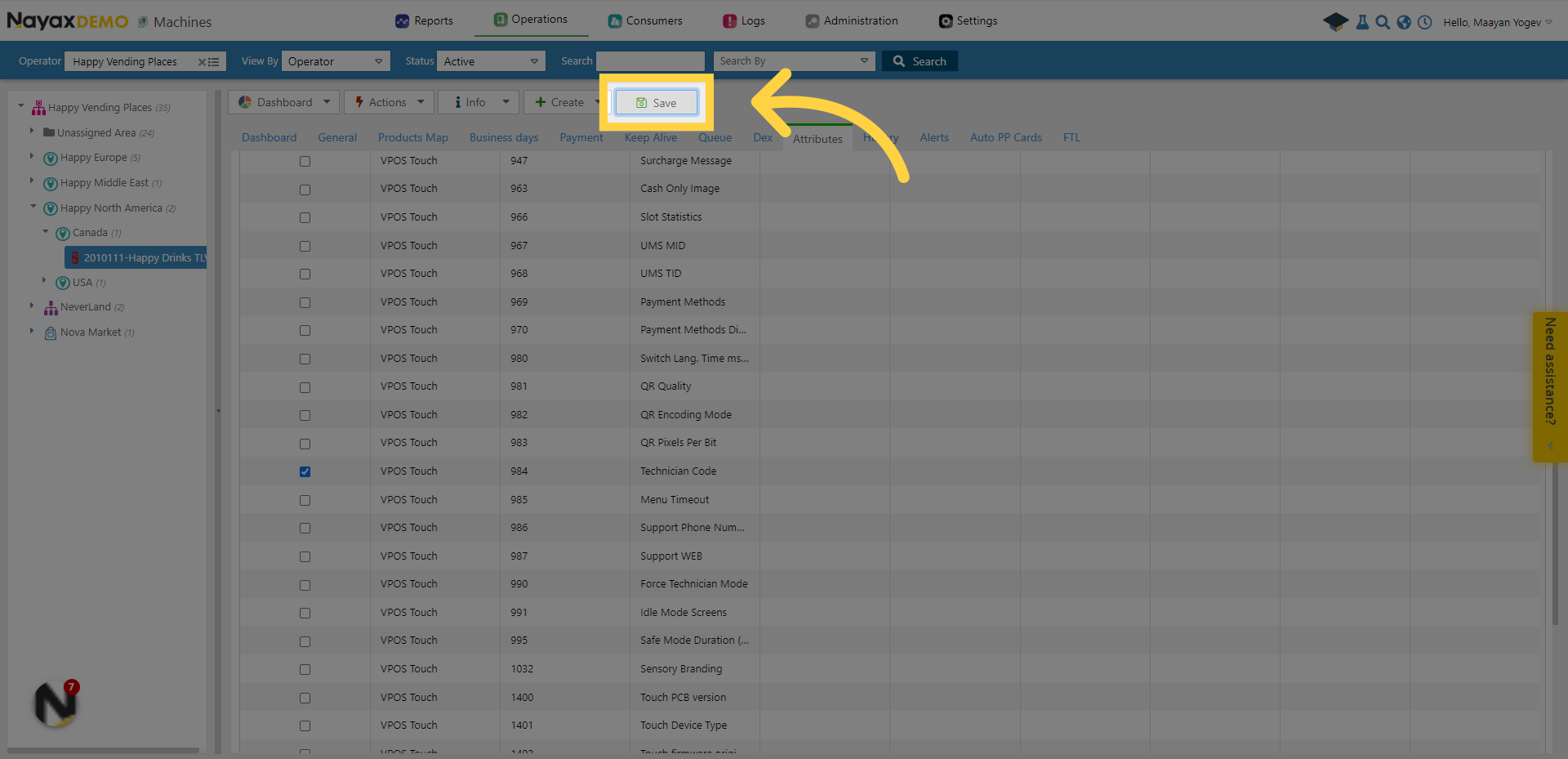
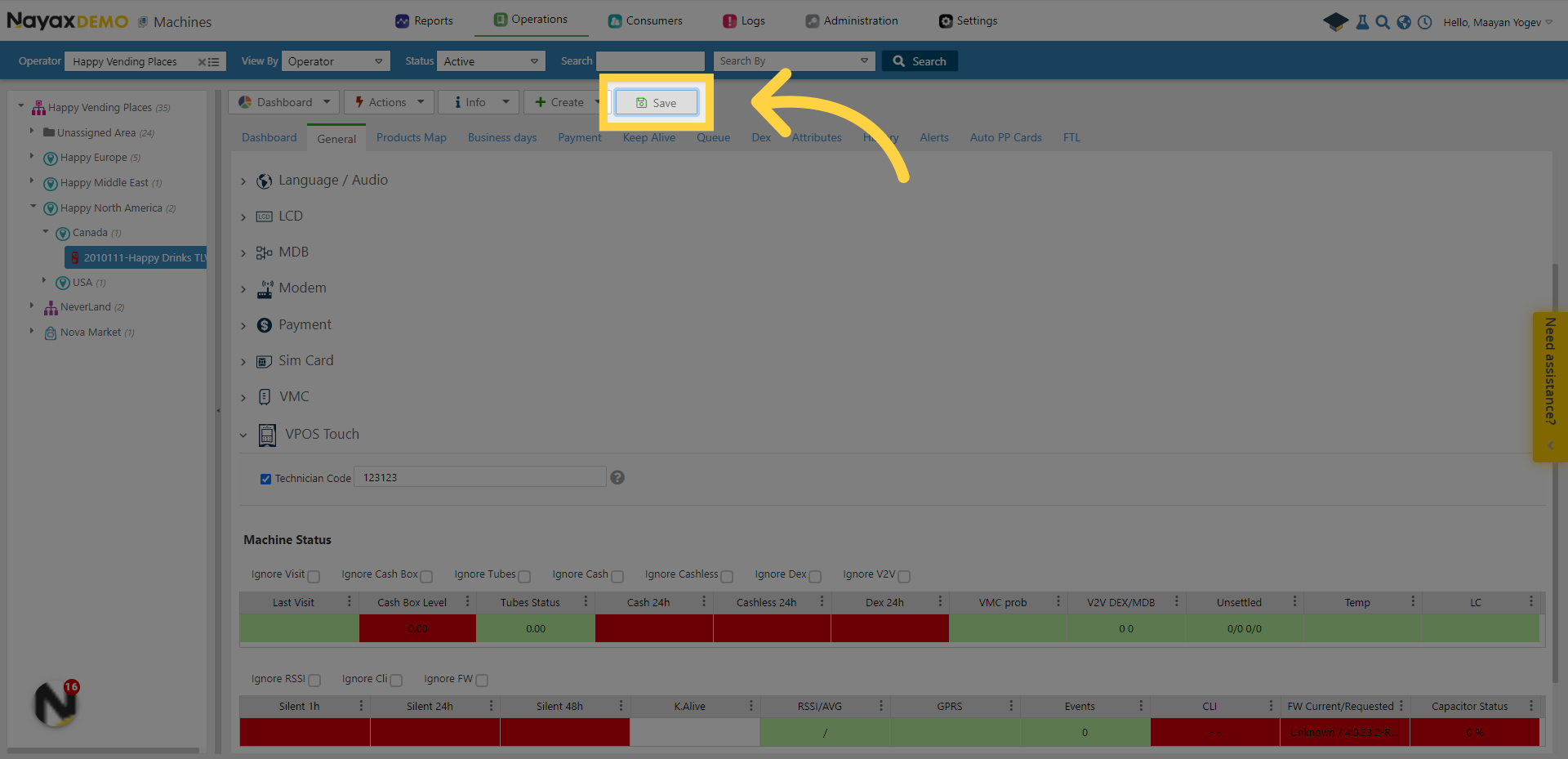
7. Click "Save"
Click on the "Save" button.
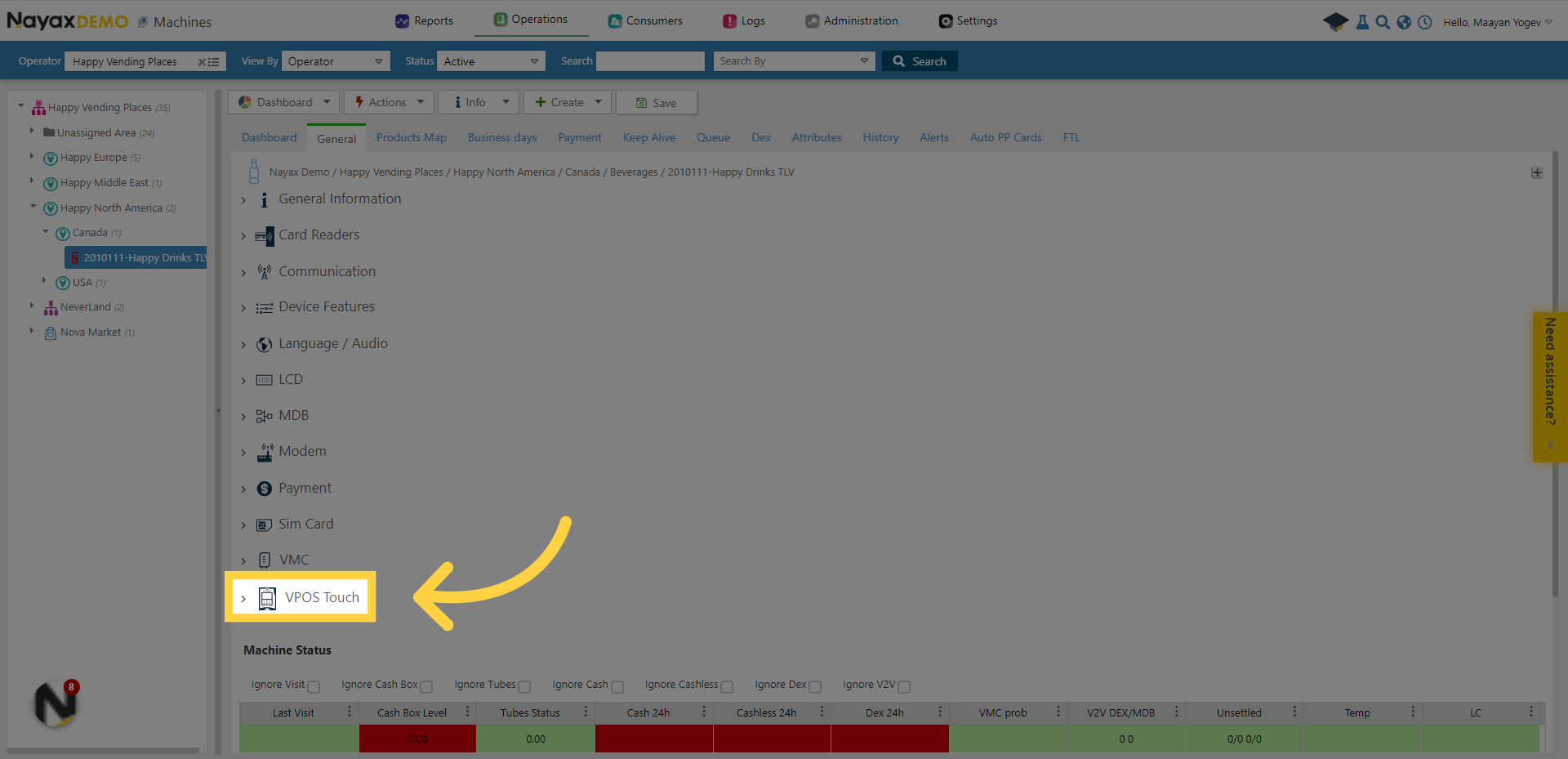
8. Click "VPOS Touch"
Go back to the General tab, then click on "VPOS Touch" from the menu.
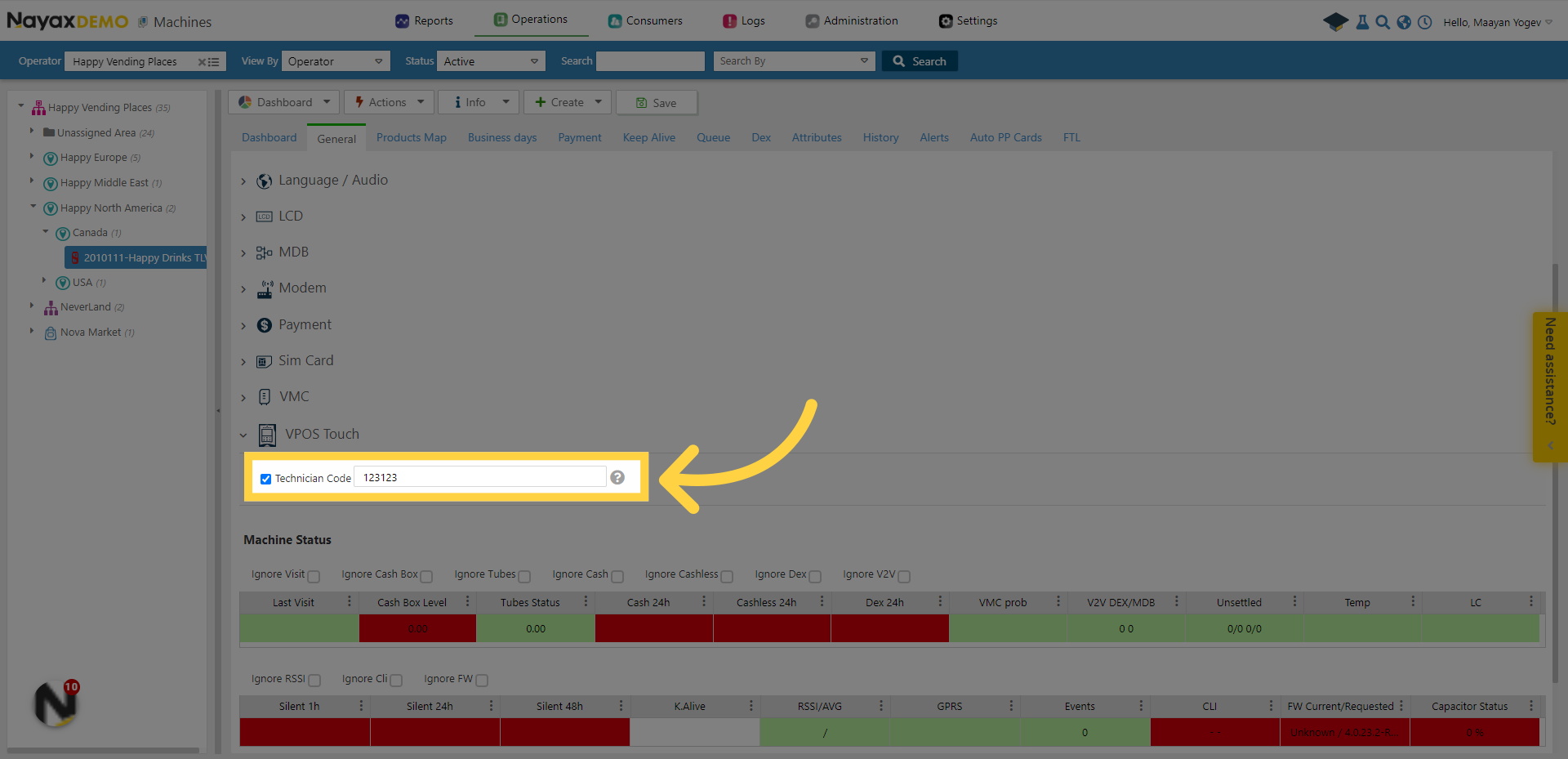
9. Tick and fill in the password
Tick on "Technician Code" and fill in the password you'd like to set for this machine
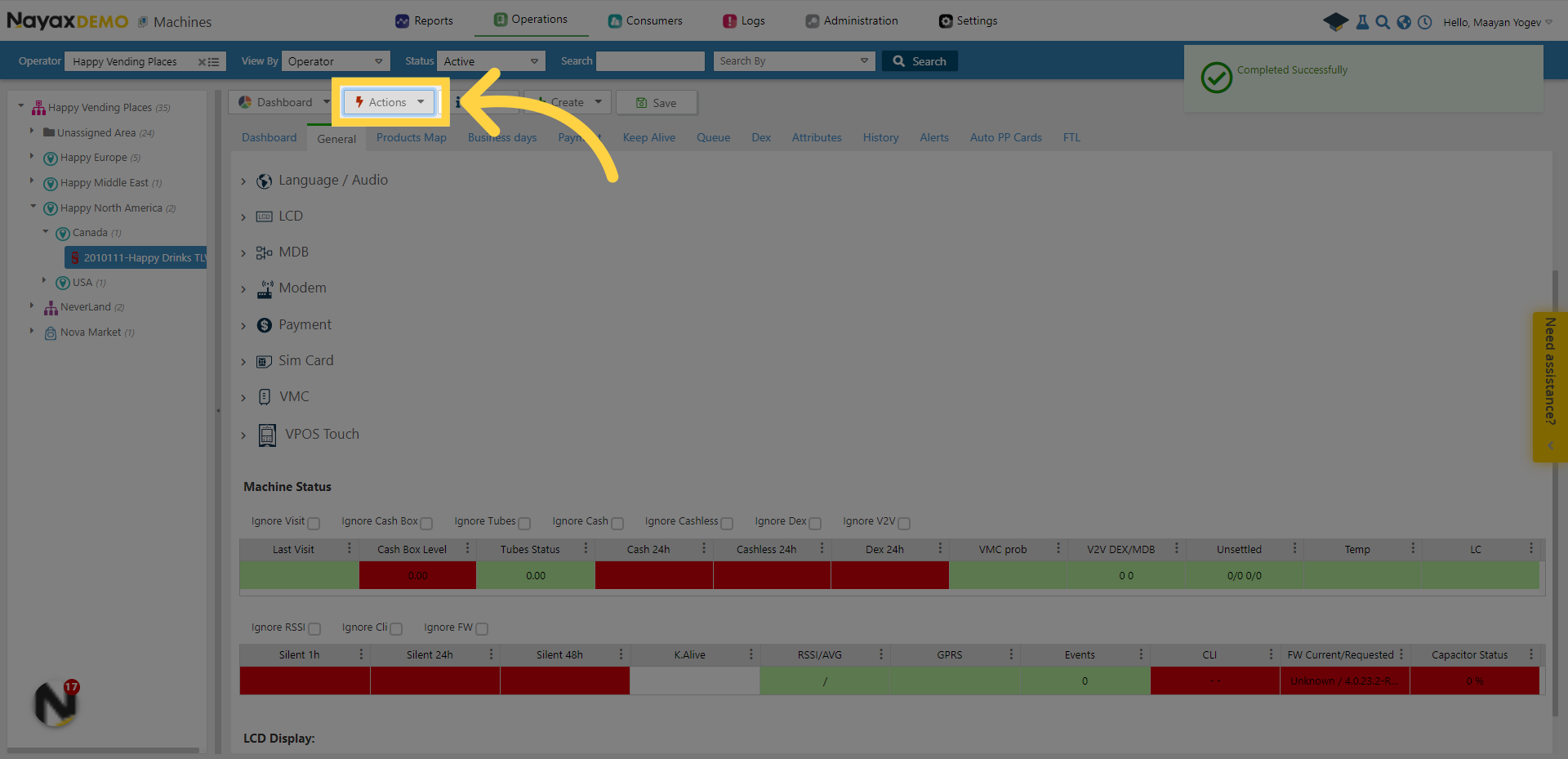
10. Click "Actions"
Select "Actions"
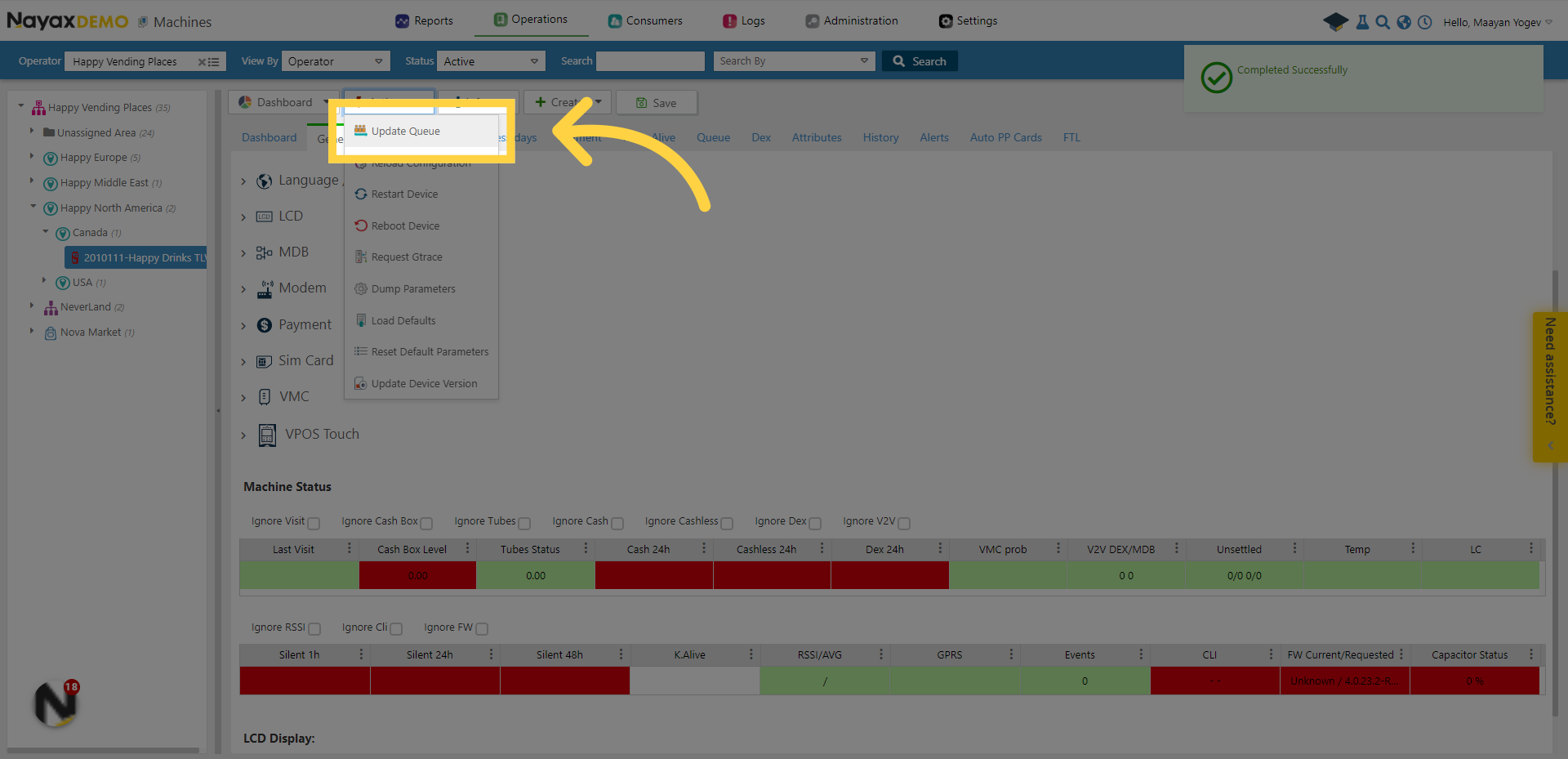
11. Click "Update Queue"
Click "Update Queue" to send the new attributes to the devices queue.
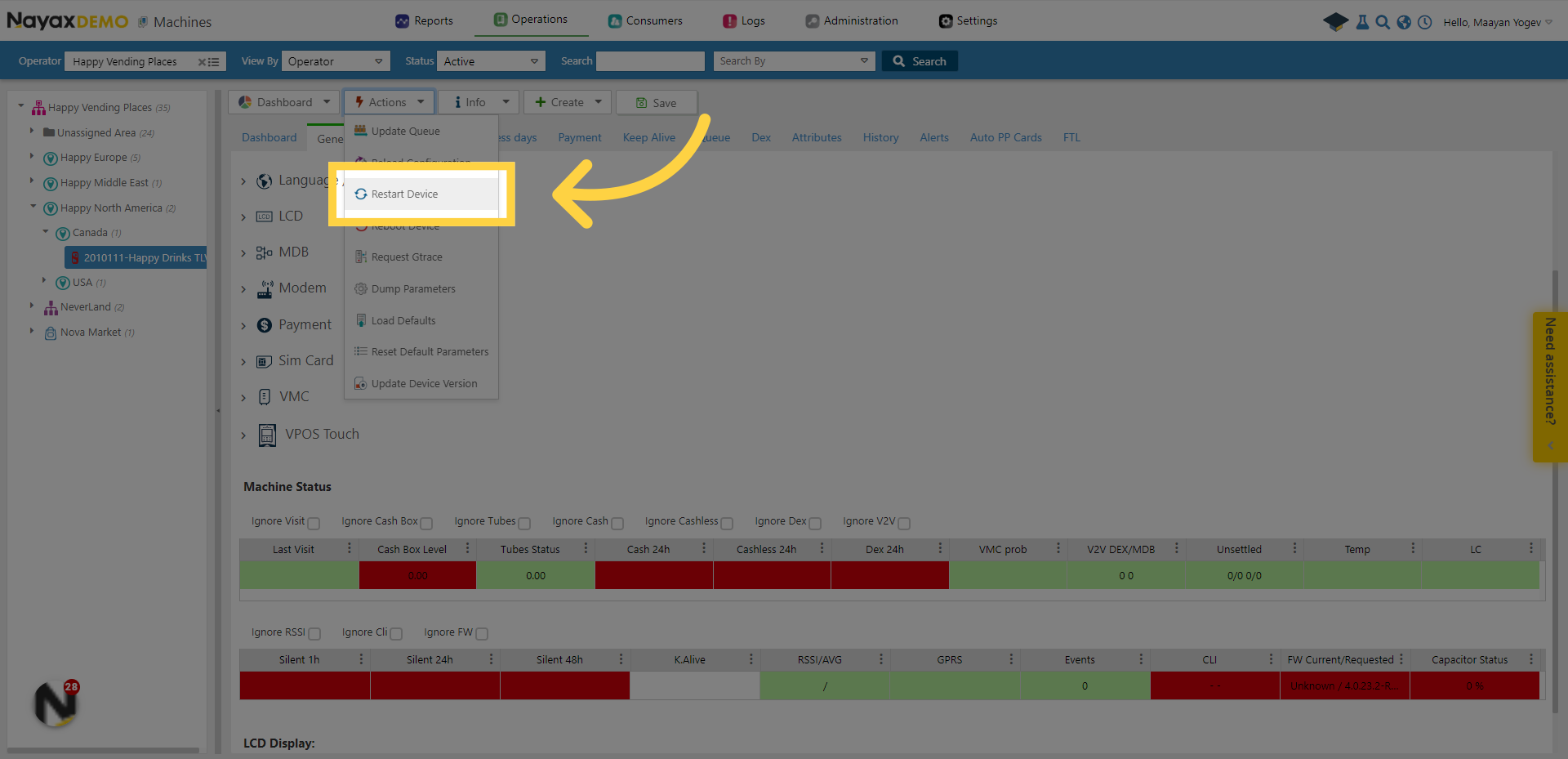
12. Click "Restart Device"
You can also choose "Restart Device" to immediately update the attributes on the machine.
13. Click "Save"
Save the changes.
This guide covers the step-by-step process to change the default code for the technician mode in Nayax Core. For more videos, check out our Youtube page. Thanks for watching!
Open in App